Browse help topics
Worker notes
Internal notes about a worker, kept for your team.
Last updated · 10 November 2026
The Notes tab is for internal notes about the worker, kept for your team. It appears for support workers only.
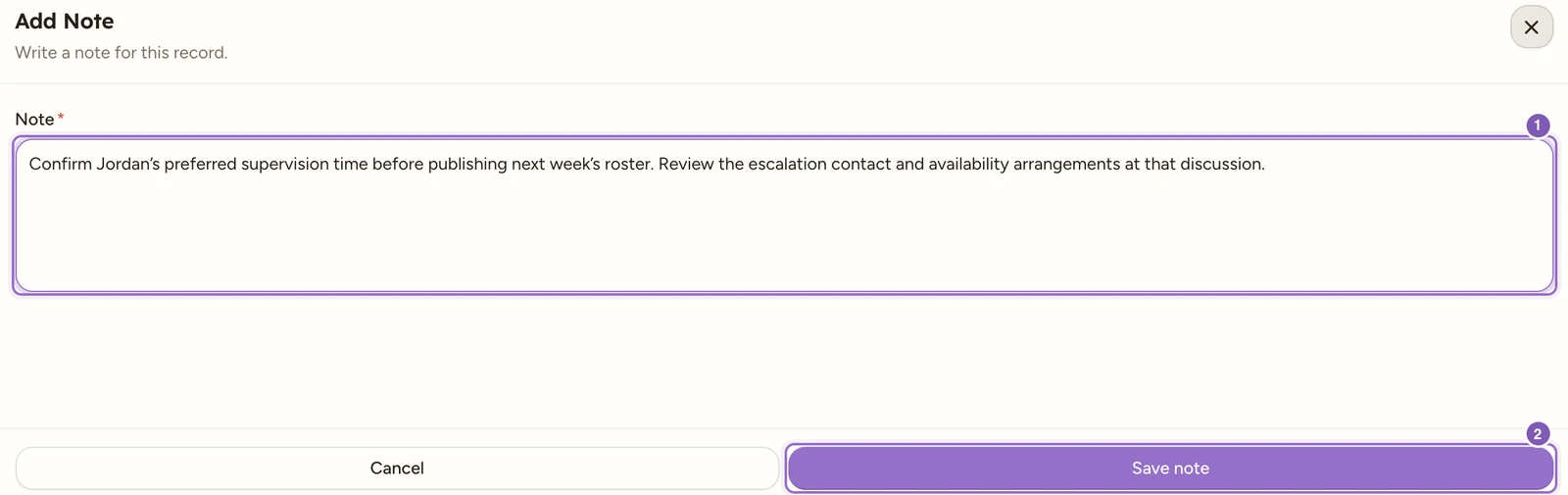
Enlarge screenshot
Swipe across the enlarged image to read each part of the screen.
Unsaved supervision-follow-up note draft has a required Note field and Save note action; it is cancelled without adding a duplicate.
Select Add note to open the note drawer. Type the note (it is required), then select Save note. Each saved note records who wrote it and when; select a note to open it, or delete it from there.

Enlarge screenshot
Swipe across the enlarged image to read each part of the screen.
The existing note gives a future office action, with Alex Morgan and its saved creation time. The view is read-only; the unsaved draft above was cancelled.
Record a useful office note
- Open Workforce > Workers, select the support worker and choose Notes. You need Workers read access to view notes and edit access to add them.
- Select Add note and enter the facts and next action, for example Confirm Jordan’s preferred supervision time before publishing next week’s roster. Review the escalation contact and availability arrangements at that discussion.
- Read the full note before saving, since the saved view does not offer text editing. Select Save note, then check the note, author and creation time in the list.
These are office notes about the worker. They are not participant progress notes, an incident report or a message to the worker’s phone. If a note needs correcting, add a clearly labelled correction that refers to the original date. The saved-note view offers deletion where permitted; do not assume opening a note lets you rewrite it. If Add note is absent, ask the owner or admin to check Workers edit access.