Browse help topics
Goals
The outcomes the participant is working towards, with progress and target dates.
Last updated · 23 September 2026
The Goals tab tracks the NDIS goals the participant is working towards, so support stays focused on outcomes and you have evidence for plan reviews.
Open the Goals tab
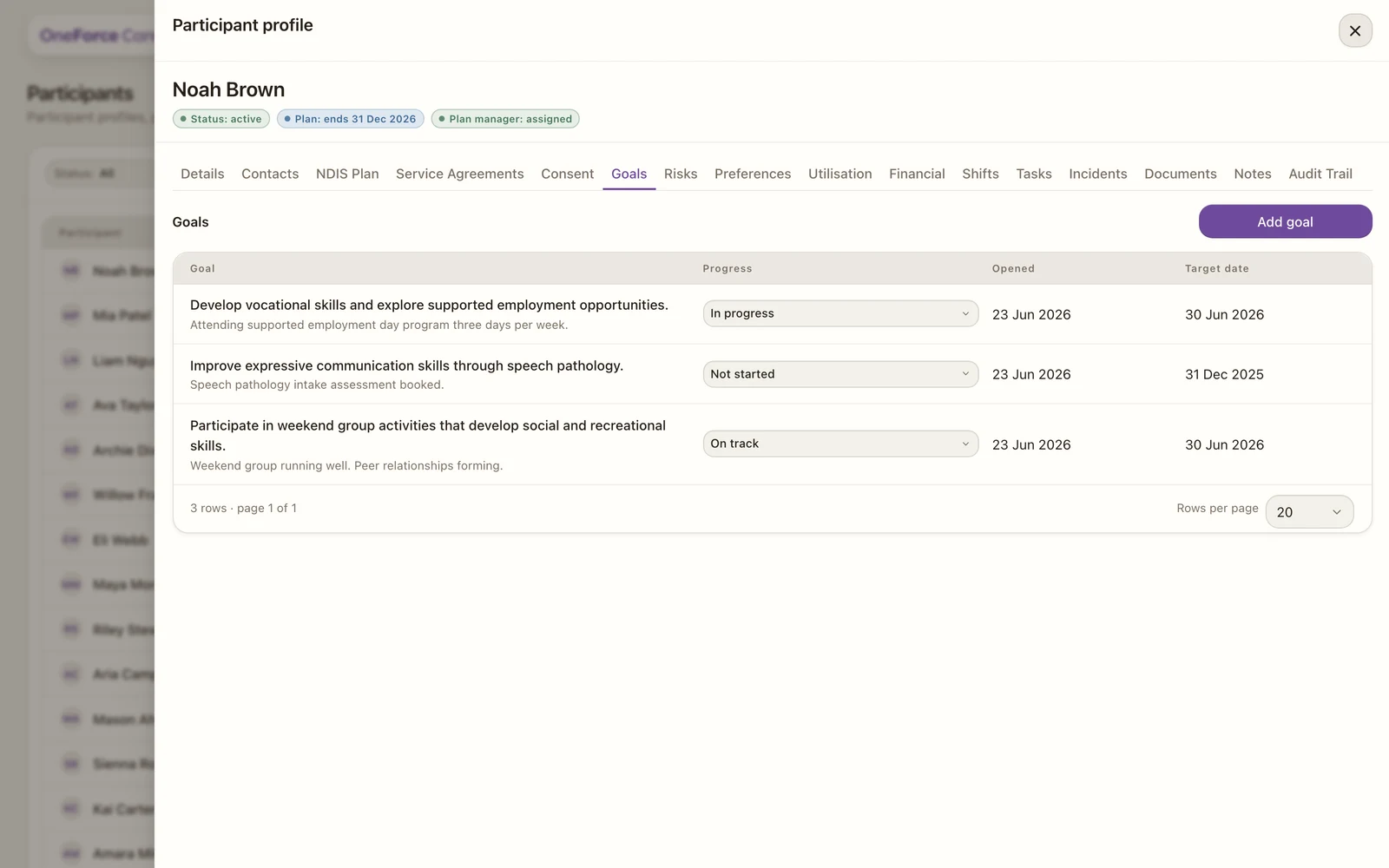
Open the participant, then select the Goals tab. Select Add goal at the top right. Existing goals appear in a table.
Fill in the goal
| Field | Required | Notes |
|---|---|---|
| Goal | Yes | The outcome the participant is working towards |
| Progress | No | Not started, In progress, On track, Needs review or Achieved |
| Target date | No | When it is aimed to be met |
| Notes | No | Progress notes and supporting evidence |
Save the goal
Select Add goal to save a new one, or Save goal when editing.
The Target date cannot fall after the participant’s service agreement ends. Pick a later date and saving shows Target date is after the service agreement ends (<date>).
Once a goal is in the list, you can change its Progress inline from the row dropdown without opening it. The list also shows the Opened date and the Target date. Keep the progress and notes current, since this is what plan reviews and reporting draw on.
Share goals with a worker
A participant’s goals can be included in the care information shared for a shift. In the shift’s sharing controls, select Goals when the worker needs that context. Sharing is chosen for the shift, so recording a goal here does not automatically expose every goal on every worker’s phone.
Review the selected information alongside risks, preferences and other care details before publishing. See Create a shift.