Browse help topics
Bulk import participants
Bring many participants in at once from a spreadsheet, linked to their contacts, plan, budgets, agreement and more.
Last updated · 2 August 2026
Setting up more than a handful of participants one at a time is slow. Import brings many in at once from a single spreadsheet: their core details, contacts, NDIS plan and budgets, service agreement and supports, goals, risks, preferences and consent, all linked together and checked before anything is saved. Matching an email even lets you update participants you already have.
Open Import
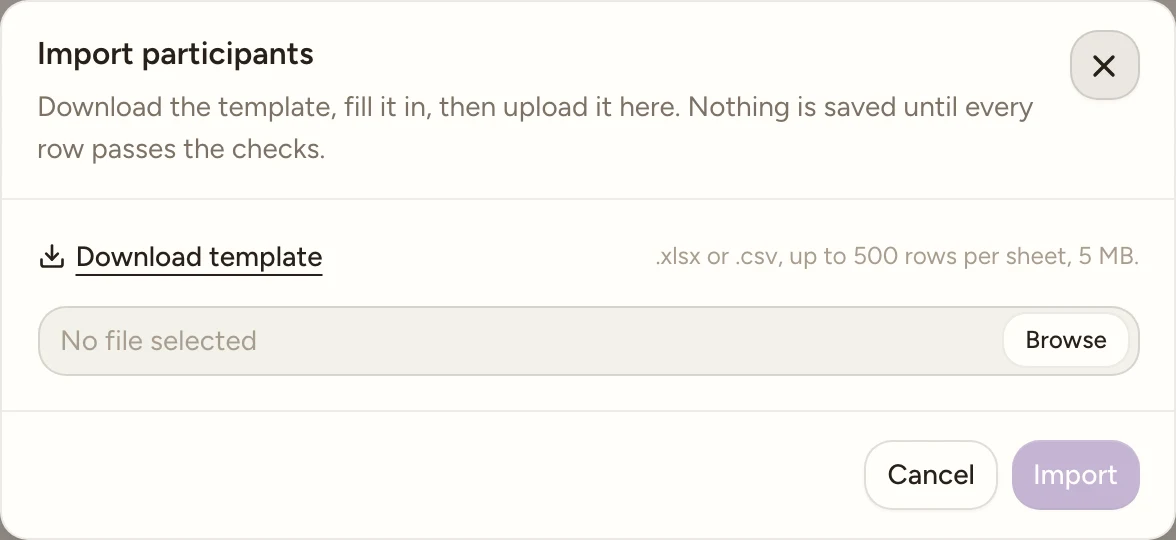
Go to Participants and select Import at the top right, just to the left of Add participant. The dialog opens, titled Import participants.
Note
Import is available when your role can create participants, the same permission Add participant needs. If your role can’t, neither button appears on the page.
Download the template and fill it in
Select Download template to get participants-import.xlsx. It has ten sheets: Participants,
Contacts, NDIS plans, Plan budgets, Service agreements, Agreement supports,
Goals, Risks, Preferences and Consent. Fill in the Participants sheet first, then add
rows to the other sheets for the participants you want them for. See The ten
sheets below for the full field list of each one, and how the Ref column links
them together.
- Required columns carry a trailing * in the header.
- Enum columns (like Gender or Funding management) are real Excel dropdowns; date columns are formatted DD/MM/YYYY.
- Hover over a column header for notes on its format and rules, for example “8 to 11 digits” on NDIS number.
- Two grey, italicised example rows sit under each header, already filled in as a worked example.
Leave them, delete them, or type over them: the import skips any row whose first cell starts with
“example” (upper or lower case), so an untouched template can never import sample data by accident.
That is why the sample refs read
example.jane@example.comandexample.sam@example.com. - Columns are matched by their header text, not by position, so you can delete columns you don’t need, as long as every required header is still there and reads the same. If you reorder columns, keep Ref (or Participant ref on the other sheets) as the first column: it’s what the importer checks to recognise and skip the example rows.
Upload your file
Back in the dialog, select Browse and choose your filled-in file. Uploading starts checking it immediately: while it runs, the file control is disabled. When it finishes, you land on either an issues list or a ready summary.
If the file is over 5 MB, you’ll see “That file is over the 5 MB import limit.” and the file is cleared. If it can’t be read as a workbook (wrong format, corrupted, or not really .xlsx/.csv), you’ll see “Could not read that file. Save it as .xlsx or .csv and try again.”
Note
A .csv file only carries the Participants sheet: a CSV has no way to hold ten sheets. Use .xlsx if you also want to import contacts, plans, budgets, agreements or anything else in the same run.
Fix issues, or import
-
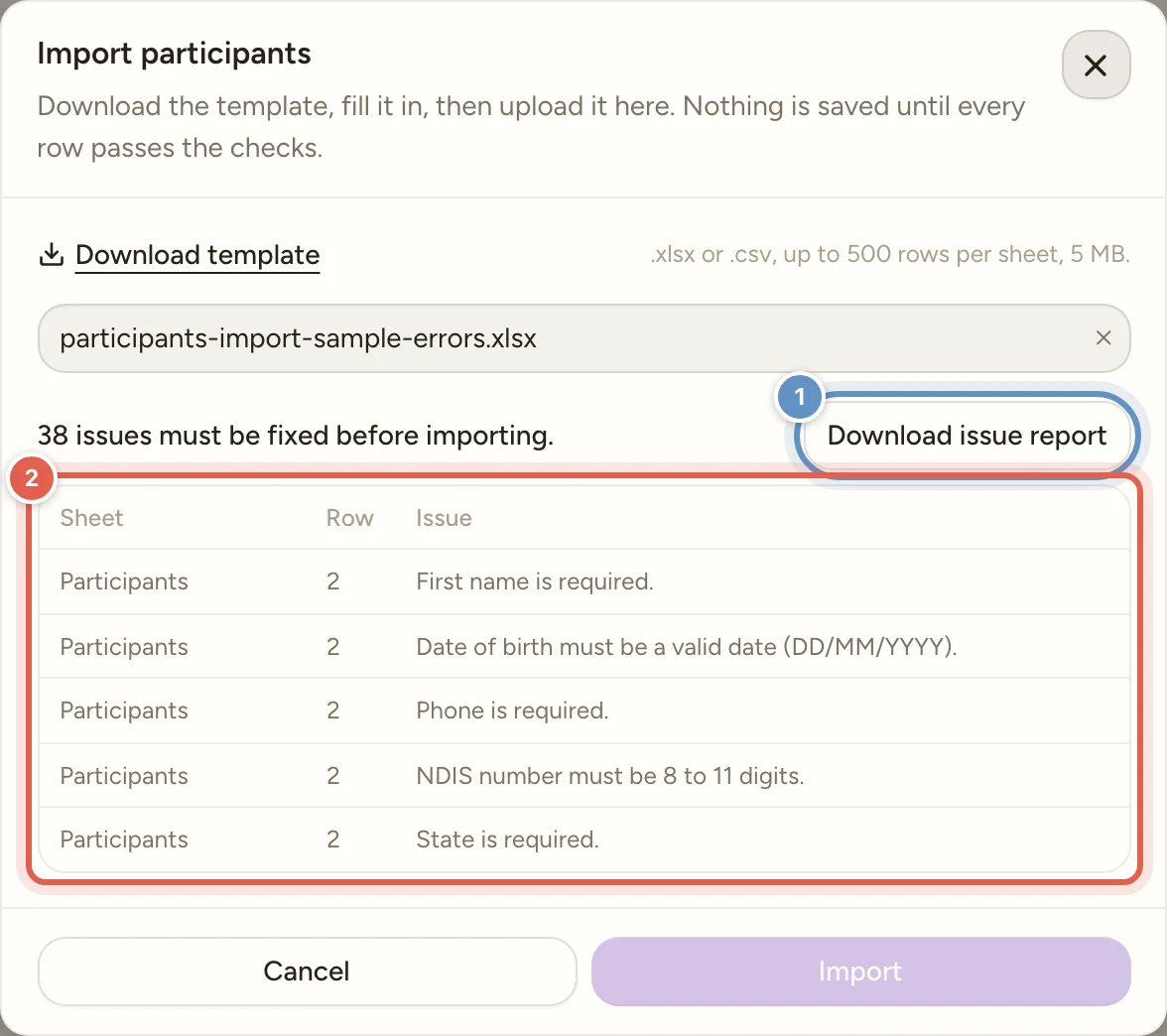
Issues found: you’ll see “1 issue must be fixed before importing.” or “N issues must be fixed before importing.”, above a scrollable table with a Sheet, Row and Issue column for each problem (a file-level problem shows File as its sheet, with no row). Select Download issue report for a CSV with a Sheet, Row, Column and Problem column for every issue. Fix your file and select Browse again to re-run the checks; there is no partial re-check.
-
Ready to import: you’ll see “Ready to import.” with a row count per sheet, for example “Participants: 24 rows” and “Contacts: 9 rows”, plus a reminder that the import is all-or-nothing: if anything fails, no rows are saved.
Select Import. It stays disabled until every issue is cleared and the Participants sheet has at least one row.
See the result
Once the import runs, the dialog shows “Import complete.” with a created count per sheet, for example “Participants: 24 created” and “NDIS plans: 22 created” (sheets with no rows are left off the list). When some rows matched an existing participant by email, a “Participants updated: N” line is added below the created counts. The participants list refreshes in the background as soon as this happens, so the new and updated participants are already there when you close the dialog. Select Close to finish.
If the import itself fails (for example a database problem after the checks already passed), nothing is saved and you’ll see an error describing what went wrong. Fix it and upload again.
Note
Unlike creating a participant one at a time, an import does not write Audit Trail entries for the rows it creates. The audit trail picks up from whatever you change on the profile afterwards.
Update existing participants by email
The Email column on the Participants sheet is the match key. A new email creates a participant; an email that matches one you already have updates that participant instead of making a duplicate.
- Blank cells keep the stored value. On an update row, a required cell you leave empty (name, phone, NDIS number, address, and so on) keeps whatever is already on file rather than erroring. Fill only the cells you want to change.
- Archived participants are rejected. If the email matches an archived participant you’ll see ‘A participant with email “…” is archived; restore them in the app before importing updates.’ Restore them first, then re-run.
- NDIS numbers stay their own. An NDIS number already used by a different participant is still rejected as a clash, but a participant keeps their own number on an update.
Tip
The child sheets can point at someone already in the app too: put that participant’s email in the Participant ref column instead of a Ref, and the new contact, plan or goal attaches to them. There is no need to re-list them on the Participants sheet.
The ten sheets
The Ref column on the Participants sheet is the id that ties one participant’s rows together across the file. It can be any short unique value, but use the participant’s email address, which is what the template does: their email is already on the row, it is unique, and it saves keeping a private numbering scheme in your head. Every other sheet has a Participant ref column that points back at it.
Participant ref accepts either of two things:
- A Ref from the Participants sheet, for someone being created (or updated) in the same file. This is the usual case, and if you have used emails as your refs then the value you type is an email.
- The email of a participant already in the app, for attaching a contact, plan, goal or risk to someone already set up, with no row for them on the Participants sheet at all.
An email is checked against the file first and the app second, so an email that names a new participant on the Participants sheet resolves to that new participant, not to an existing one. Between them, that is how OneForce Care knows which contact, plan, budget, agreement, goal or risk belongs to whom.
| Sheet | Required | Linked by |
|---|---|---|
| Participants | Yes, at least one row | Ref (unique within the file; the other sheets point at it) |
| Contacts | No | Participant ref: a Ref, or an existing participant’s email |
| NDIS plans | No | Participant ref; at most one plan row per participant |
| Plan budgets | No | Participant ref; needs one NDIS plan row for that participant |
| Service agreements | No | Participant ref; one agreement row per participant |
| Agreement supports | No | Participant ref; needs a Service agreements row for that participant |
| Goals | No | Participant ref |
| Risks | No | Participant ref |
| Preferences | No | Participant ref |
| Consent | No | Participant ref; one consent row per participant |
If a Participant ref doesn’t resolve, you get one of two messages: ‘Participant ref “…” does not match any row on the Participants tab.’ for a plain ref that isn’t on the Participants sheet, or ‘No existing participant has the email “…”.’ for an email that matches neither a Ref in the file nor a participant you already have. A typo in an email ref always shows the second message, so check the Participants sheet as well as your existing participants when you see it.
Participants
| Column | Required | Notes |
|---|---|---|
| Ref | Yes | Any short unique id. Use the participant’s email, as the template does |
| First name | Yes | |
| Middle name | No | |
| Last name | Yes | |
| Date of birth | No | DD/MM/YYYY |
| Gender | No | Male, Female or Prefer not to say |
| Pronouns | No | Select from list |
| Ethnicity | No | Select from list |
| Primary language | No | Select from list |
| Primary diagnosis | No | Free text |
| Yes | The match key. A new email creates; a matching email updates that participant. Unique within the file | |
| Phone | Yes | Australian format, e.g. 04XX XXX XXX or 0X XXXX XXXX |
| NDIS number | Yes | 8 to 11 digits. Must be unique within your provider |
| Medicare number | No | 10 or 11 digits |
| Centrelink number | No | 9 digits followed by a letter, e.g. 123 456 789A |
| Address line | Yes | |
| Suburb | No | |
| State | Yes | NSW, VIC, QLD, WA, SA, TAS, NT or ACT |
| Postcode | Yes | A valid Australian postcode, e.g. 2000 |
Every newly imported participant starts at status Created, exactly like one added through Add participant. Give them a row on the NDIS plans sheet and their status moves to Plan set; a Signed service agreement row (below) marks the agreement as executed and activates them.
Tip
Postcode is required on every participant, on import and on the create form alike: an address without one is treated as incomplete.
Contacts
| Column | Required | Notes |
|---|---|---|
| Participant ref | Yes | A Ref on the Participants sheet, or an existing participant’s email |
| Contact type | Yes | Nominee, Guardian, Family, Emergency contact, Plan manager, Support coordinator or Clinician |
| First name | Yes | |
| Last name | Yes | |
| Business name | No | For professional contacts (Plan manager, Support coordinator, Clinician) |
| Relationship | No | For personal contacts (Nominee, Guardian, Family, Emergency contact) only |
| Phone | Yes | Australian format |
| Sometimes | Required for Plan manager, Support coordinator and Clinician contacts | |
| Preferred contact method | No | Phone, Email, SMS, Website or None |
| Address line | No | |
| Suburb | No | |
| State | No | NSW, VIC, QLD, WA, SA, TAS, NT or ACT |
| Postcode | No | Must be a valid Australian postcode if given |
| Acts as plan manager | No | Y when a Support coordinator contact also receives and pays invoices |
| Notes | No |
Two role rules match the interactive Contacts tab: a Relationship belongs only on a personal contact, and Acts as plan manager applies only to a Support coordinator. A Support coordinator row with Acts as plan manager set to Y clears the participant’s Coordinator: unassigned alert and makes that coordinator available as the plan-manager contact on a service agreement.
NDIS plans
| Column | Required | Notes |
|---|---|---|
| Participant ref | Yes | One plan row per participant: it imports as their current plan |
| Plan number | Yes | 8 to 11 digits |
| Start date | Yes | DD/MM/YYYY |
| End date | Yes | DD/MM/YYYY, on or after Start date |
| Funding management | Yes | Self-managed, Plan-managed, NDIA-managed or Mixed |
| MMM code | Yes | MM1 (metro) to MM7 (very remote); drives the price-cap region |
| Notes | No |
Watch out
A participant can have only one plan row per import: a second is rejected with “Only one NDIS plan per participant can be imported (each imports as the current plan).”
Plan budgets
| Column | Required | Notes |
|---|---|---|
| Participant ref | Yes | Needs a row on the NDIS plans sheet for the same participant |
| Budget type | Yes | Core, Capacity building or Capital |
| Allocated amount | Yes | Dollars allocated to this pool, e.g. 25000. Must be 0 or more |
| Stated | No | Y when the funds are locked to that pool |
Stated works exactly like the Stated toggle on the NDIS Plan tab, and so does the rule that Capacity building and Capital are always stated under NDIS rules. Those two pools import as stated whether you enter Y or leave the cell blank; only an explicit N is rejected, with “Capacity building budgets are always stated under NDIS rules. Set Stated to Y.” Core is the only pool where the choice is yours.
A budget row’s funding management always follows its own plan’s Funding management, the same as adding a budget from the NDIS Plan tab. Two rules apply:
- A budget row needs its participant to have exactly one NDIS plans row in the same import. Without it, or with more than one, the row is rejected: ‘Participant “…” needs exactly one row on the NDIS plans tab to attach budgets to.’
- Only one budget row per pool per participant: a second is rejected, e.g. “Only one core budget row per participant can be imported (the app keeps a single budget per pool).”
Watch out
A Stated budget locks funding to its pool, so once you import a service agreement for that participant the agreement must carry at least one support code in the same pool (Core = categories 01-04, Capacity building = 07-15, Capital = 05-06). If it doesn’t, the row is rejected: “Stated core budget needs at least one agreement support code in that pool.”
Service agreements
| Column | Required | Notes |
|---|---|---|
| Participant ref | Yes | One service agreement row per participant |
| Start date | Yes | On or after the NDIS plan start when a plan row is present |
| End date | Yes | On or before the NDIS plan end when a plan row is present |
| Invoice recipient name | Sometimes | Required unless the participant’s plan is NDIA-managed |
| Invoice email | Sometimes | Required unless the participant’s plan is NDIA-managed |
| Status | No | Draft (default) or Signed. Signed marks it executed and activates them |
| NDIA report terms included | No | Y when the agreement covers paid NDIA report-writing time |
| Non-face-to-face terms included | No | Y when it covers paid non-face-to-face support time |
| Provider travel time included | No | Y when it covers paid provider travel time |
| Short notice cancellation terms included | No | Y when it allows short-notice cancellation charges |
| Cross-boundary higher-of included | No | Y when a support crossing a price band may bill at the higher band’s limit |
| Cancellation notice hours | No | Agreed short-notice window in hours; leave blank for the standard rule |
The agreement window must sit inside the plan’s funded window when a plan row is present, so a start before the plan start or an end after the plan end is rejected and names the plan date. A Signed agreement needs a positive Agreed rate on every one of its supports, or you’ll see ‘Enter the agreed rate for … before importing this agreement as signed.’
Agreement supports
| Column | Required | Notes |
|---|---|---|
| Participant ref | Yes | Needs a row on the Service agreements sheet for the same participant |
| Support item number | Yes | NDIS support code, e.g. 01_011_0107_1_1; checked against the catalogue on import |
| Agreed rate | Sometimes | Unit price in dollars. Required when the agreement is Signed; must be greater than 0 |
| Monthly hours | No | Committed hours per month for planning. Maximum 744 (the hours in the longest month) |
Watch out
A support row needs its participant to already have a Service agreements row in the file. If it doesn’t, the row is rejected: ‘Participant “…” needs a row on the Service agreements tab to attach agreement supports to.’
Goals, Risks, Preferences and Consent
These four sheets attach smaller records to a participant by Participant ref (Ref or email).
| Sheet | Required columns | Optional columns | Notes |
|---|---|---|---|
| Goals | Participant ref, Goal | Progress, Target date, Notes | Progress defaults to Not started. Target date can’t be after the agreement end |
| Risks | Participant ref, Risk | Rating, Close date, Notes | Rating is Low, Medium, High or Critical. Close date can’t be after the agreement end |
| Preferences | Participant ref, Title | Description | A short like/dislike shown on the participant’s profile |
| Consent | Participant ref, Consent date | - | Records a signed manual consent. One consent row per participant |
Note
When a service agreement is imported for the participant, a Target date or Close date after the agreement’s end date is capped and rejected: “Target date is after the service agreement ends (date).” Keep goal and risk dates inside the agreement window.
Reading the issue list
Most issues name the field and the rule, for example “Postcode is required.”, “State must be one of: NSW, VIC, QLD, WA, SA, TAS, NT, ACT.”, “Allocated amount must be a number.” or “End date must be on or after Start date.” Format checks (email, phone, NDIS number, plan number, Medicare, Centrelink, postcode) show the same message you’d see filling in the field by hand, for example “Enter a valid email address.” or “Enter a valid Australian postcode.”
A few issues are file-level rather than row-level, and show against File instead of a row number:
- ‘The “Participants” sheet is missing.’ if the workbook has no sheet by that name.
- ‘The “…” sheet is missing the “…” column.’ if a required column’s header was renamed or deleted.
- ‘The “…” sheet has more than 500 data rows (limit 500 per import).’
- “Unsupported file type. Upload a .xlsx or .csv file.” if the extension isn’t .xlsx or .csv.
Watch out
Every issue in the file must clear before Import turns on. The import is all-or-nothing, so a single bad row blocks the whole file rather than being skipped or imported partially.
Tip
Only need a handful of participants? Add them one at a time instead; Import is for bringing in a batch.