Browse help topics
Shift types
Direct, Group and Intensive support, and what changes for each.
Last updated · 2 August 2026
Every shift has a Type, set on the create form. It decides how many workers and participants the shift has and how it is priced. You choose it from three pills at the top of the Add shift form.
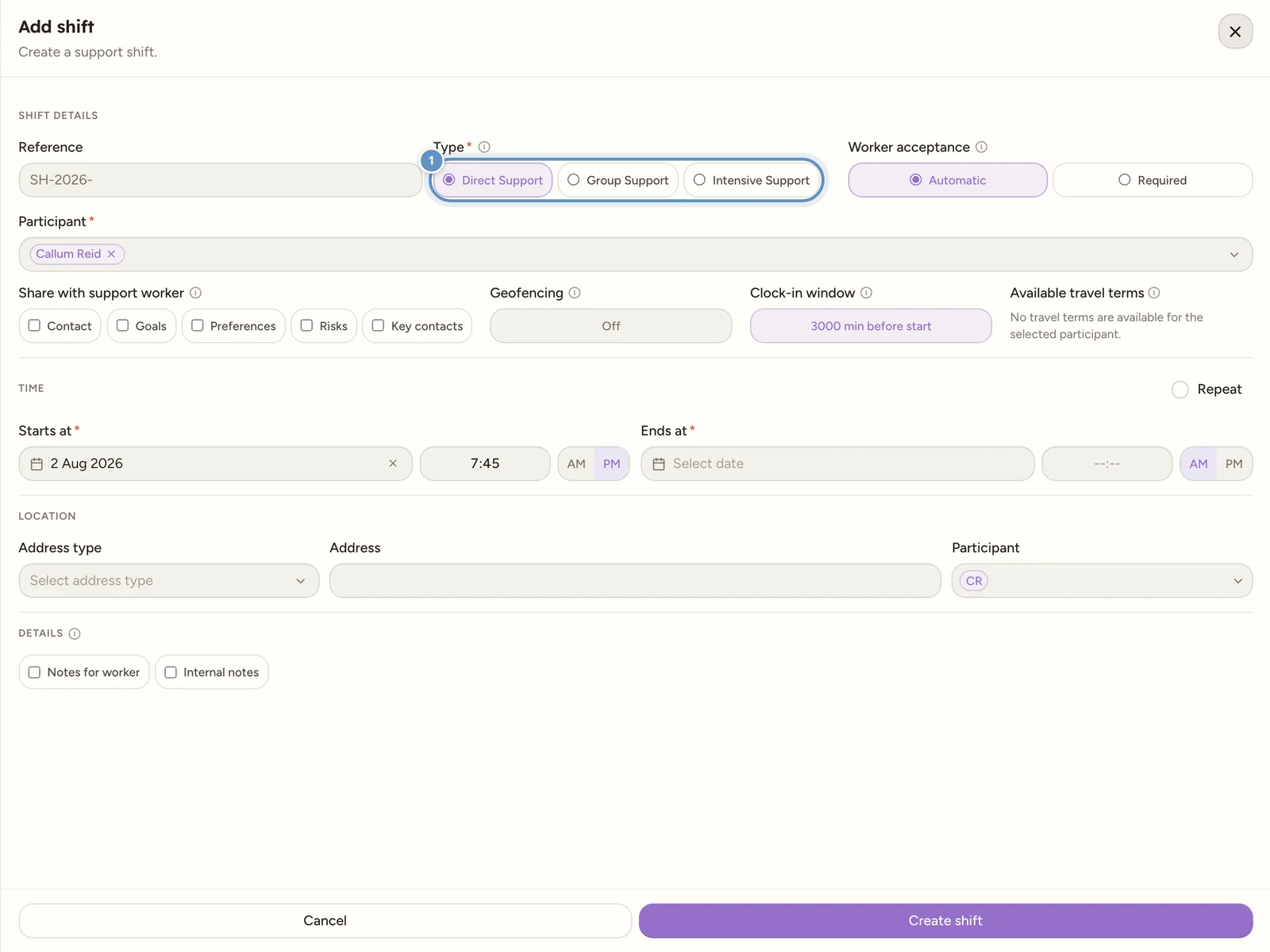
| Type | Workers and participants | Pricing |
|---|---|---|
| Direct Support | One worker, one participant. The everyday 1:1 shift. | Standard 1:1 rate. |
| Group Support | One or more workers supporting several participants at once. | The rate is shared across the group. |
| Intensive Support | More than one worker for one participant, for example 2:1 or 3:1. | Each worker is billed at the full 1:1 rate. |
Note
Intensive is meant for more than one worker on one participant. Leave an Intensive shift with a single worker and OneForce Care flags a non-blocking Single-worker intensive shift warning: “Intensive is a multi-worker shift type. Add another worker, or use Direct support for a single worker.” It does not stop you saving; it is a nudge that Direct support is the right type for one-to-one delivery.
Note
Group support has two extra rules. Every participant on the shift must share the same pricing region, checked as you select them, and the Location section changes shape: instead of one address, you list a pickup address per participant (or group of participants) plus a shared Destination drop-off, on by default. See Create a shift for the field-by-field detail.
Tip
Adding the workers differs by type when you assign a worker: Group support uses Add assignment to attach participants per worker, while Intensive uses the Assigned workers multi-select.