Browse help topics
Notifications
Mark notifications read, set notification preferences, and message all workers.
Last updated · 23 September 2026
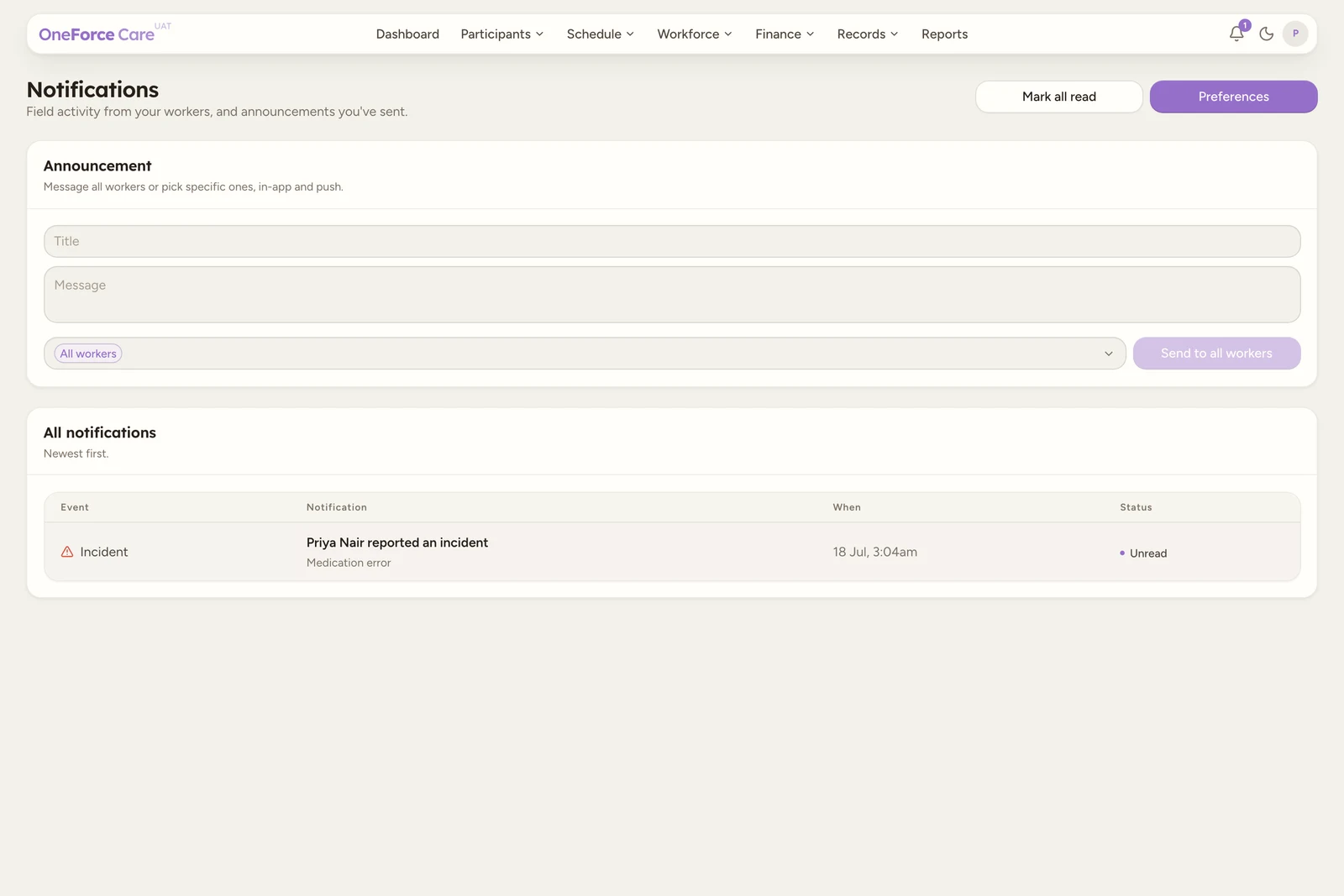
The bell icon at the top right keeps you across field activity from your workers, plus any announcements you have sent. Select the bell to see the five most recent items, or open the full page from Notifications.
Read and clear notifications
The All notifications table lists items newest first, with the Event, the Notification text, When it happened, and a Status of Read or Unread.
- Select Mark all read to clear every unread item at once. It is greyed out when nothing is unread.
- Select any Unread row to mark just that one read.
Notification preferences
Select Preferences to choose which field events notify your office team. These apply to everyone in your workspace, and new events are on by default, so you only turn off what you do not want.
The toggles are grouped:
| Group | Events |
|---|---|
| Shift acceptance | Shift declined; Shift unconfirmed |
| Attendance | Clock in; Clock out |
| Travel | Travel started; Travel ended |
| Participants | Pickup; Drop-off |
| Notes | Progress note submitted |
| Breaks | Break started; Break ended |
| Reminders | Late clock-in; Missed clock-out; Progress note overdue |
| Incidents | Incident reported |
Shift acceptance is about workers confirming the shifts you publish to them, and only ever fires on a shift whose Worker acceptance is set to Required (see Assign a worker):
- Shift declined: a worker declines a shift you published to them.
- Shift unconfirmed: a shift is still unconfirmed 48 hours, then 12 hours, before it starts.
A worker accepting sends nothing; the shift’s Accepted status is the signal.
There is no Save button: each toggle saves on its own, with a toast such as Clock in notifications off.
Note
Incident reported is always on and cannot be turned off, so a reported incident never goes unseen.
Send an announcement
If you have Settings edit access, the Announcement card lets you message your workers in their app and as a push notification. It reads Message all workers or pick specific ones, in-app and push.
Note
The composer is gated by a workspace feature. With Account > Features > Communication > Announcements switched off, the Announcement card disappears from this page for everyone. See Workspace features.
Choose who it goes to
Leave the Recipients picker empty to reach every active worker, shown as an All workers chip. To target specific people, search the picker (Search workers) and add them; each one becomes a chip. The picker is a searchable multi-select, so you can add as many as you need.
Write the message
Enter a Title (up to 120 characters) and a Message (up to 1000 characters). The send button stays greyed out until both have text.
Send it
The send button reflects who it reaches: Send to all workers when the picker is empty, or
Send to workers when you have chosen specific people. Select it, and a Send announcement?
dialog confirms the audience: This goes to every active worker in your workspace, in their app
and as a push notification. for everyone, or This goes to N selected worker(s), in their
app and as a push notification. when you targeted people. Select Confirm. You see
Announcement sent to N worker(s). and the fields clear. If nobody matched, you see No
matching workers to notify. instead.
Watch out
An announcement cannot be recalled once sent. Check the recipients, title and message before you select Confirm.
Availability requests and responses
Availability notifications open the relevant collection period or submission. Casual workers receive a request on mobile, and the office can review their response in Workforce > Availability > Approvals. If the office proposes new hours, the worker can accept them or resubmit a different response. See Review availability submissions.
Platform announcements and release notes
Platform updates can appear in a banner above the office navigation or in an announcement dialog. Follow Release notes for the full change history. Dismissing an announcement clears it for your own account; it does not dismiss it for the rest of your team.
These updates are separate from the office announcements you write for workers. On mobile, the Home tile surfaces a recent office announcement for up to 24 hours, while the message remains in the Alerts list afterwards. Push notifications go to the worker’s active phone.