Browse help topics
Get help and raise an issue
Raise a bug, question or idea, follow it, and see what we are already working on.
Last updated · 2 August 2026
Something not behaving? Not sure how a screen is meant to work? Got an idea that would save your team an hour a week? All three go to the same place: the Help and issues board inside the app. You raise it, you can follow it, and you can see what we are already working on.
Open the board
The board is not in the top navigation. It sits in your account menu at Account menu›Help & issues, so it is one click away from every screen.
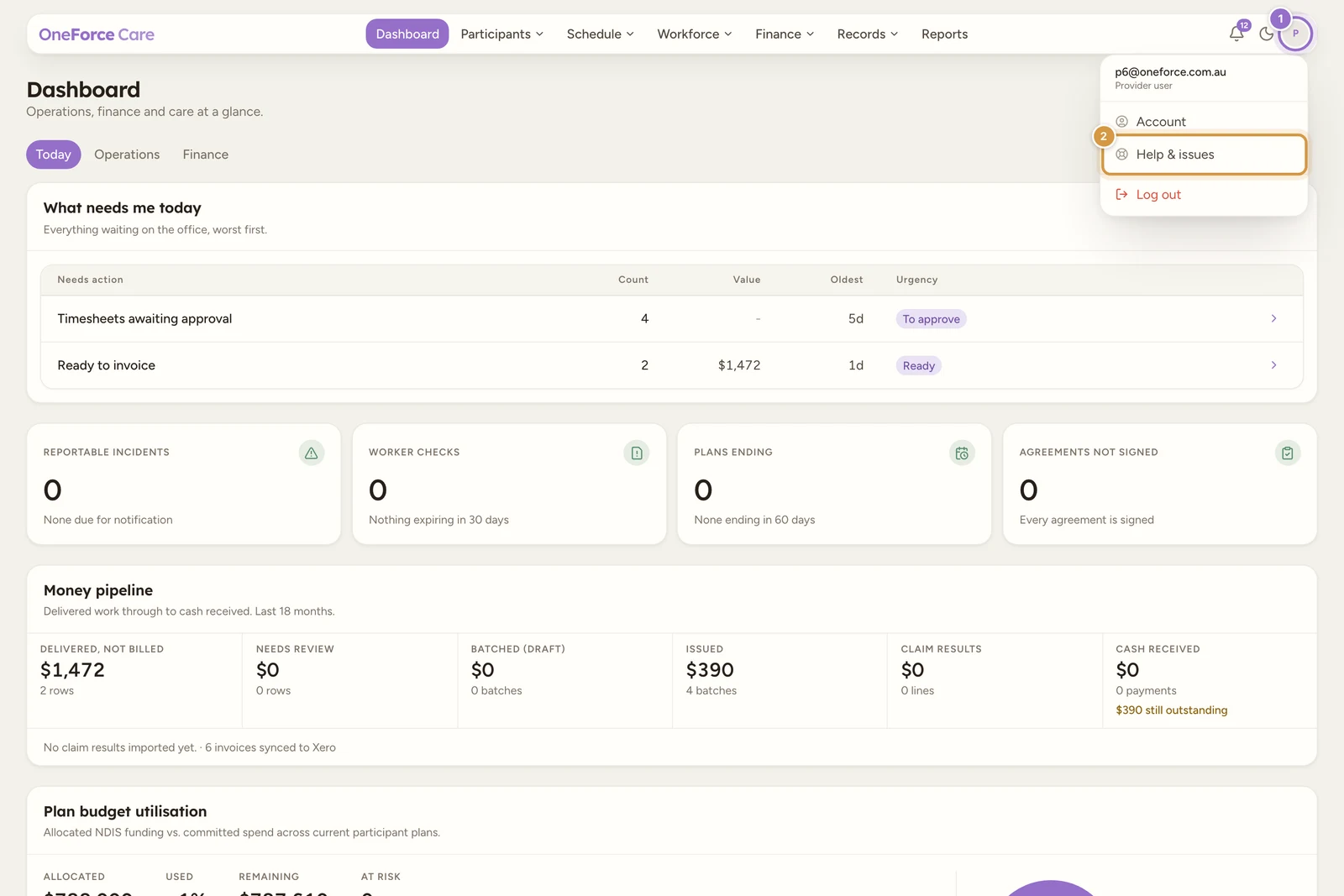
Everyone who uses the office app can open it. There is no permission to switch on and nothing to configure first.
Note
Support workers use the OneForce Care mobile app, which has no issue board. If a worker reports something from the field, whoever handles it in the office raises it here on their behalf.
What you are looking at
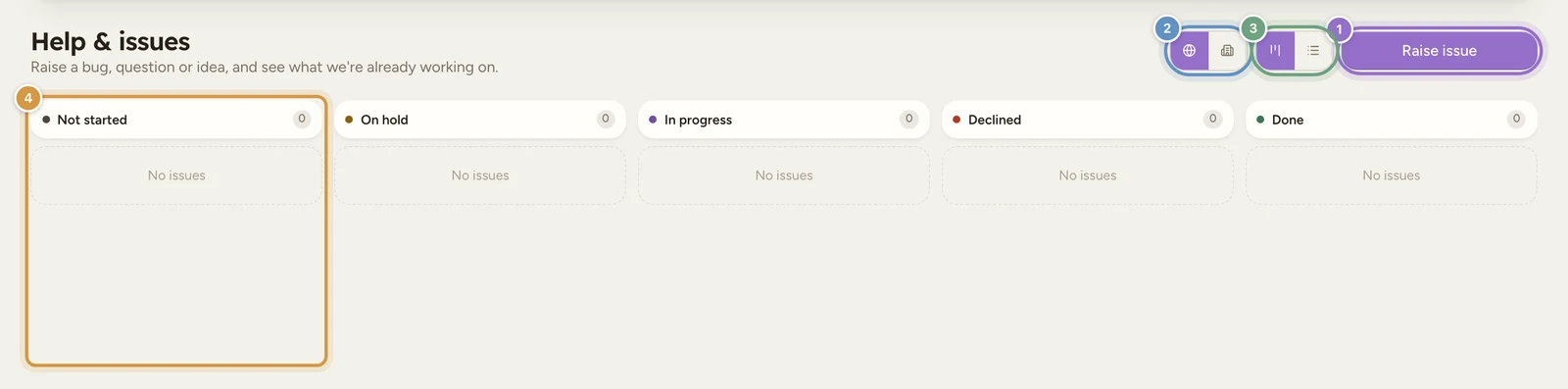
Each card shows the date it was raised, its title, a Bug, Question or Idea badge, a padlock when it is private, and buttons to like and watch it. Cards are ordered most-liked first, so the issues customers care about most rise to the top of a column. A busy column shows its top twenty cards and a +n older in table view line underneath.
Select any card to read the whole issue, its attachments and every update we have posted on it.
Raise an issue
Select Raise issue at the top right. The form is short on purpose.
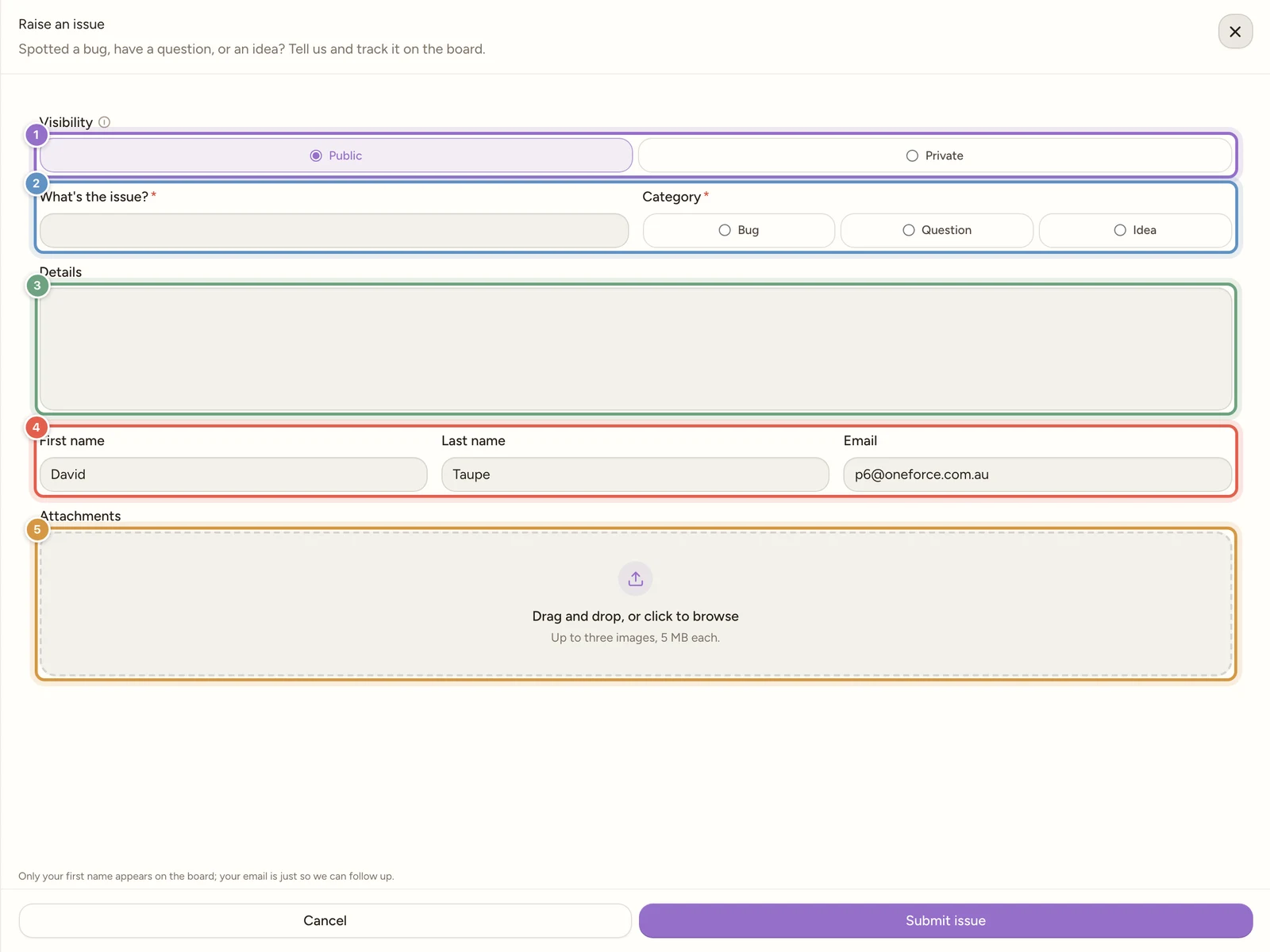
Choose the visibility
Public is the default. A public issue appears on the board for every organisation using OneForce Care, which is what lets other providers add their support to it. Choose Private when the issue involves your own participants, staff or numbers.
Write a title and pick a category
What’s the issue? is one line, so lead with the thing that is wrong: Timesheet approval button does nothing on Safari beats Payroll problem. Then choose Bug (something is broken), Question (you cannot work out how something should work) or Idea (a change you would like). Both fields are required.
Fill in the details
In Details, tell us what you were doing, what you expected, and what happened instead. The screen you were on, the exact wording of any message, and the date and time all help. For a bug, the steps that reproduce it are the single most useful thing you can give us.
Attach a screenshot
Drag up to three images onto the Attachments box, or select it to browse. Each can be up to 5 MB, and only images are accepted. A screenshot of the screen, with the message visible, usually saves a round of questions.
Submit
Select Submit issue. You will see Thanks, your issue is on the board, and it appears in the board’s opening column. Your name and email are already filled in from your account, so there is nothing else to complete.
Watch out
Keep participant and staff personal details out of the title, the details and your screenshots. A reference such as a shift number is enough for us to find the record, and it keeps personal information where it belongs. If the issue cannot be explained without it, set the visibility to Private.
What happens next
Once your issue is on the board, three things keep you in the loop.
- It is watched for you. Raising an issue automatically marks you as a watcher and adds your like, so you never have to remember to follow your own report.
- Updates arrive by email. Whenever the issue moves to a new column, or we post a reply on it, everyone watching it gets an email titled Update on “your issue title”. The View ticket button in that email opens the issue straight from the board.
- Replies are kept with the issue. Open the card and any replies we have posted are listed under Updates, each with the date it was posted, alongside the details you gave us and any images you attached. Select an image to view it full size.
You can also follow issues you did not raise. Open any card and use the two buttons at the top right of it:
| Button | What it does |
|---|---|
| Like | Adds your support and moves the issue up its column. Likes are how we see what matters most. |
| Watch | Puts you on the email list for that issue. It reads Watching once you are on it. |
Liking something another provider raised is the quickest way to tell us your team has hit it too.
Who can see what
This is a shared board, so it is worth being precise about what leaves your organisation.
| What you raise | Who can see it |
|---|---|
| A Public issue | Every organisation using OneForce Care, plus the OneForce Care team. |
| A Private issue | Only people in your own organisation, plus the OneForce Care team. Other organisations never see it. |
Whichever you choose, the board only ever shows your first name against an issue. Your surname and your email address are not simply hidden from other organisations: they are never sent to the board at all, for anybody, including your own colleagues. Nor is your organisation’s identity: the “my organisation” filter works without the board ever being told which organisation an issue came from. We hold your email so we can follow up, exactly as the form says underneath it: Only your first name appears on the board; your email is just so we can follow up.
A private issue raised by a colleague is visible to you too, so your organisation can pick up each other’s reports while someone is on leave.
Find an issue again
Two controls narrow the board, and both apply to the board and the table alike.
- The globe shows All issues, the default, which is everything you are allowed to see. The building beside it shows Issues from my organisation, which is the fastest way back to your own team’s reports.
- The table view turns the same issues into a list with Issue, Status, Category, Raised by, Likes and Raised columns, plus Status and Category filters and a search box. Use it when a column has more cards than the board shows, or when you know a word from the title.
Tip
Before you raise something, search the table view for a word or two from your issue. If it is already there, liking and watching it tells us it is affecting more than one team, and puts you on the email list for the fix.