Browse help topics
Availability and leave
See approved hours across the team and keep availability connected to the roster.
Last updated · 23 September 2026
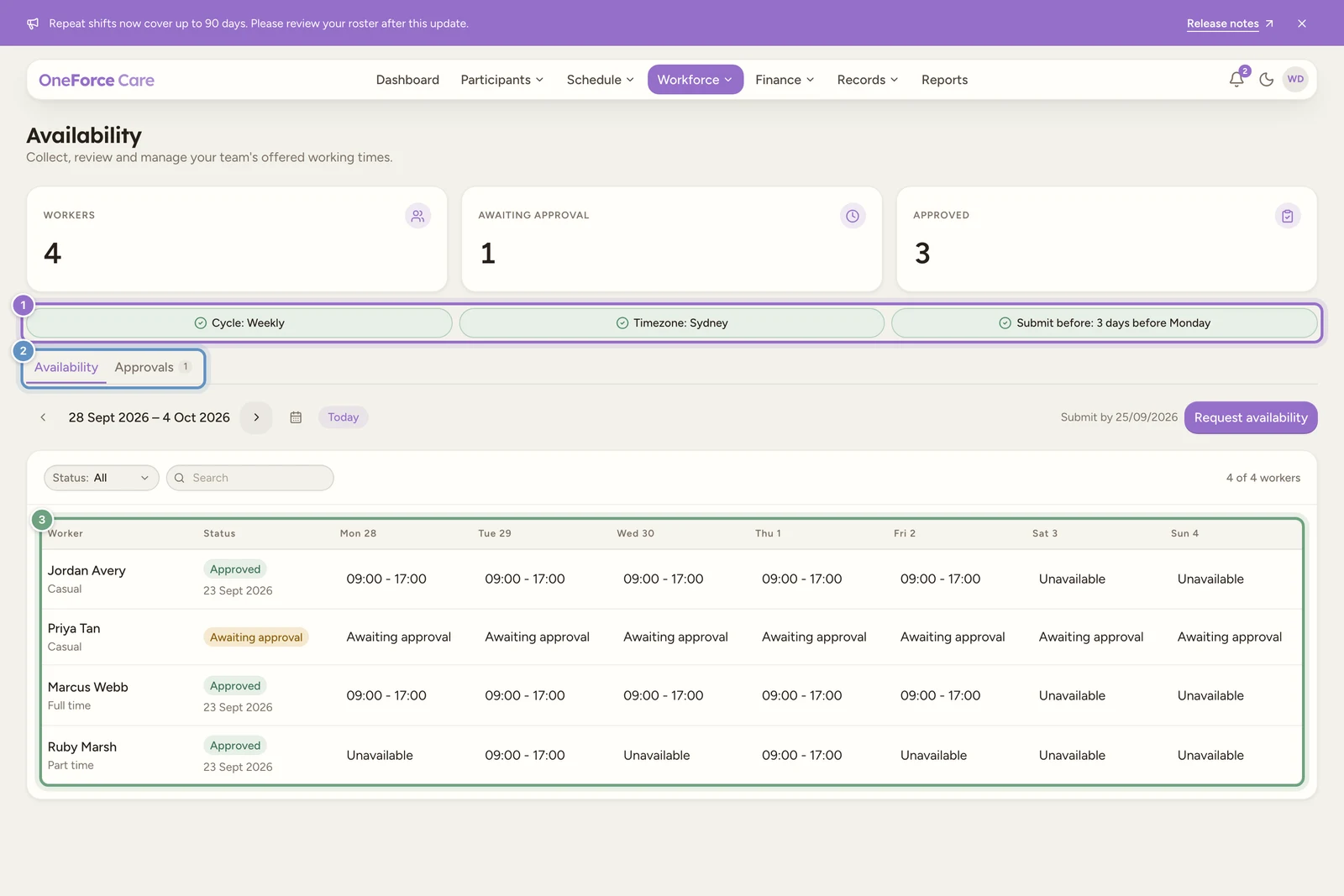
Open Workforce›Availability to see when your support workers can work. The page brings the team calendar, collection settings and submission reviews together.
Two views, one agreed schedule
- Availability shows approved hours and leave by worker and day. Move between collection periods, then between weeks within a longer period.
- Approvals shows submissions needing office review across all periods. Select Approved beside search to include approved history.
The summary at the top shows Workers, Awaiting approval and Approved. The approval count can include submissions outside the period currently shown in the calendar.
Start with employment type
Availability is for support workers. Set Employment type on each worker’s Details tab, even if you do not use Payroll.
| Worker | How hours are collected |
|---|---|
| Casual | Request a collection period, then review the worker’s submission. |
| Full time or part time | Set regular weekday hours in the office. Workers can submit future changes for review. |
| Needs setup | Set employment type before managing the worker’s hours. |
Read the day labels
| Label | Meaning |
|---|---|
| A time range | Approved hours. Overnight hours show (+1 day). |
| All day | Availability covers the whole day. |
| Unavailable | The worker cannot work that day. |
| Annual leave or Sick leave | Leave applies to that date. |
| Not set or Not submitted | Hours have not been supplied or approved for that day. |
| Awaiting approval | A submission still needs review. It is not permission to book new hours. |
Check the full shift
Scheduling requires saved availability covering the whole shift, including time after midnight. Missing hours are not treated as available. Leave and pending withdrawals are included in the checks.
Work through the cycle
- Set collection settings and request casual availability.
- Ask workers to respond in the mobile app.
- Review submissions and agree changes.
- Record regular hours or leave where needed.
- Assign and publish shifts within approved hours.
The worker profile’s Availability tab is a read-only summary. Make office changes here on the workforce page.
If a message blocks a request or assignment, see the Availability messages and Scheduling messages in the troubleshooting reference.