Browse help topics
Add or correct a break
Check eligibility, enter completed break times and a reason, then check net support minutes before approval.
Last updated · 10 November 2026
If a worker missed a break recording or recorded the wrong times, the office can add or correct it after the shift. Confirm what happened with the worker before changing the record.
Before you start
You need Scheduling edit access and Record breaks enabled under Account > Features > Scheduling. The assignment must have a saved worker, both actual clock times and a currently submitted progress note. If the office returned the note, wait for resubmission.
Save pending assignment changes first. Approved assignments need approval undone before an eligible correction. Cancelled assignments cannot be changed this way. Issued charges and finalised payroll can also prevent a change.
Open the assignment's Breaks section
Go to Schedule > Assignments, open the worker’s assignment and find Breaks. You can also reach the same assignment through Manage assignments on the shift.
With no recorded breaks, use the + control on the right of the empty state. When breaks already exist, use Add break below the table.

Enlarge screenshot
Swipe across the enlarged image to read each part of the screen.
The worker recorded this 0.61-minute break during the short demonstration. Add break is for a separate genuinely missing interval, not a duplicate deduction.
Enter the completed break
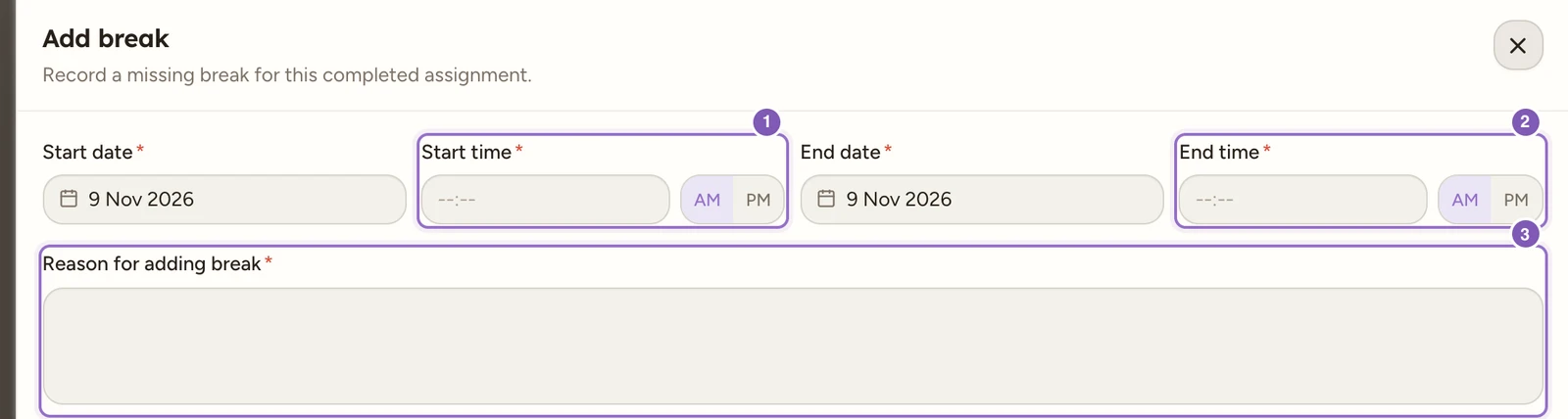
In Add break, set Start time and End time, using the actual date and time in the shift’s timezone. The end must follow the start, cannot be in the future, and both times must be within the assignment’s recorded support window.
A break cannot overlap another break. An existing break without an end must be resolved first. Where the clock repeats during a daylight-saving change, choose the intended occurrence shown by the form.
Enlarge screenshot
Swipe across the enlarged image to read each part of the screen.
The actual Add break fields are blank and unsaved. Enter the verified completed interval and an office reason, then use Add break below the form. No extra break was created.
Explain and save
Enter Reason for adding break, then select Add break. The saved record keeps the office entry’s author, time and reason.
Check net time afterwards and, when billing is required for the assignment, the minutes allocated to each support code. The break feeds the existing time deductions and can expose an allocation mismatch. Saving it does not change the worker’s clocks, note or assignment approval.
Example: a missed 30-minute break
Suppose the saved clocks are 9:00 AM to 1:00 PM and the worker confirms an unrecorded break from 11:00 AM to 11:30 AM. In Add break, select the actual shift date for both times, enter that interval and explain the evidence in Reason for adding break, for example “Worker confirmed the missed break during office review.” Do not enter a 30-minute duration into a clock field.
After saving, check that the Breaks table contains that one completed interval and that net support time reflects the deduction. If two time-based support codes are selected, recheck their billable-minute split against the new net time before approving. The example does not determine what break the worker should have taken; record the break that occurred.
Correct an existing break
Select an eligible break row, including a worker-recorded break, to open Edit break. Correct Start time or End time, enter Reason for changing break, then select Save changes. The same timing and eligibility checks apply. The history retains the previous and corrected times with your reason.
Note
Adding or editing a break does not approve the assignment. Return to Review and approve assignments to check the resulting time and support allocation before sign-off.
If a break cannot be changed
Read the error and compare the proposed interval with the saved Clock in, Clock out and other break rows. Complete the worker’s resubmission if the note was returned, save pending assignment edits, or undo approval when allowed. If someone changed the same break after you opened it, reopen the row and compare the latest times before trying again. Do not enter a second break to replace an existing one, as that would deduct time twice.