Browse help topics
Review and approve availability
Review the changes, agree the hours and follow up affected shifts.
Last updated · 23 September 2026
Open Workforce > Availability > Approvals. This list brings outstanding submissions together across periods, so you do not need to search calendar weeks for each worker.
Read a submission
Select a row. Read the Worker note, then compare Current availability with Submitted availability day by day. Revised times stand out in bold grape text.
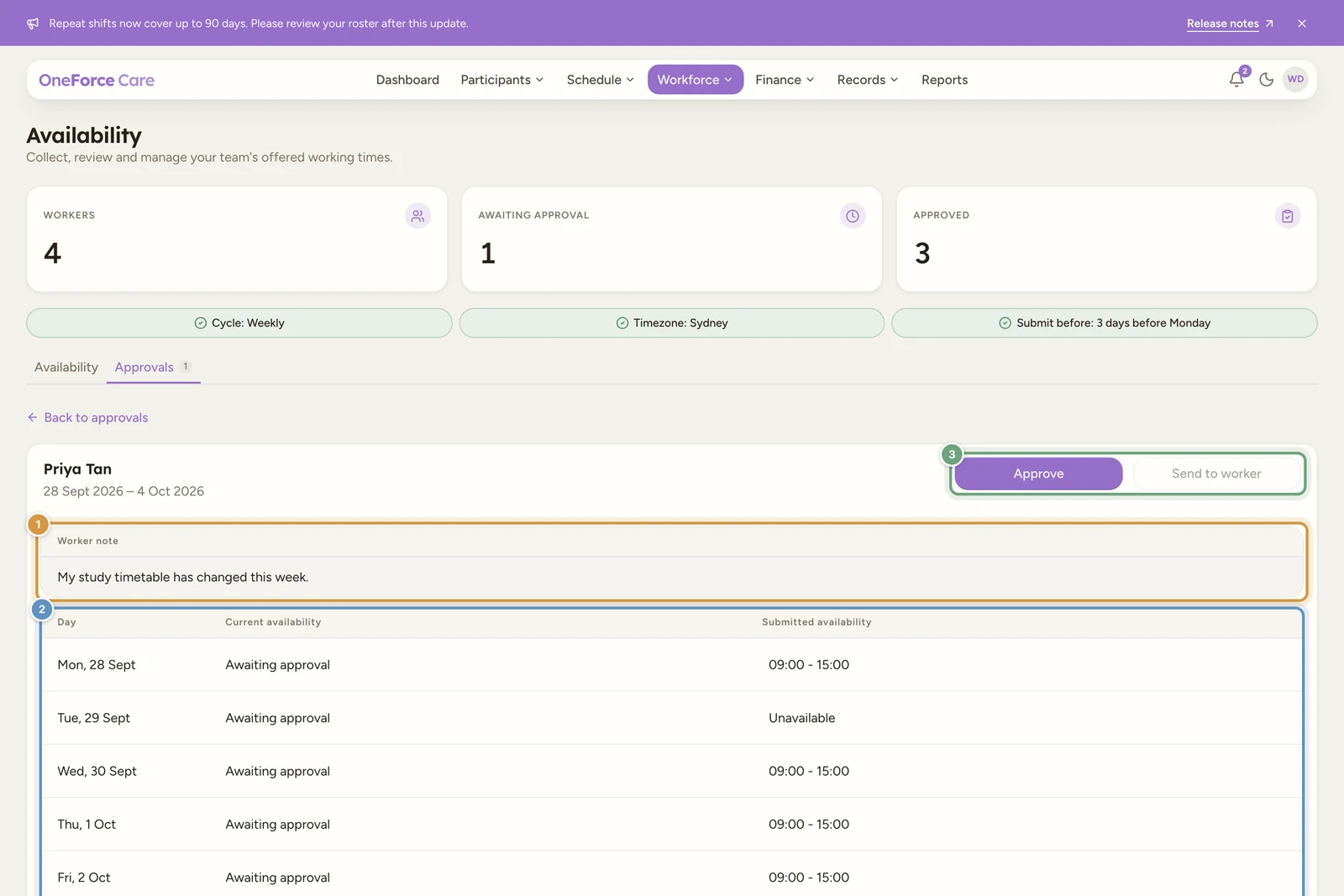
Choose what happens next
| Action | Result |
|---|---|
| Approve | Approves the submitted hours. |
| Approve changes | Appears after you edit submitted times. Saves and approves the office changes. |
| Send to worker | Sends revised times to the worker for acceptance. Enabled after you edit hours. |
| Approve all | Reviews outstanding submissions together from the list. Check the confirmation and affected shifts before continuing. |
The worker can Accept changes in the app if they agree to the proposed hours. Acceptance completes the approval. If they change the times instead, they Resubmit for another office review. Changing only the note does not change the acceptance action.
When the roster is affected
If changed hours conflict with published shifts, Review affected shifts lists them. Review the list and acknowledge the follow-up before continuing.
The shifts stay on the roster
Approving changed hours does not automatically cancel or reassign published shifts. Follow up the affected bookings with the worker and arrange coverage in Scheduling.
Existing office changes and leave can still apply over a period submission. Read any Existing office change or leave still applies. message beside a day.
History and simultaneous changes
Select Approved beside search to include approved submissions. If a submission has changed while you had it open, return to the list and open the latest version. This protects newer responses and office decisions from older open reviews.