Browse help topics
Export an incident PDF
Prepare a PDF from saved incident details and evidence.
Last updated · 10 November 2026
Use the incident PDF to share a saved record or prepare supporting information for a notification. You need permission to read incidents. Document access is also required to include the attachment register and photos.
Save the incident
Save any edits first. The export includes saved information only. In an open drawer, the export action reads Save before exporting while changes need to be saved.
Open Export incident PDF
Select the export icon in the register’s Export column, or Export PDF in the saved incident drawer.
Choose the report type
For a reportable incident, choose Immediate notification for the incident details, people and immediate actions, or Five day notification to also include witnesses, the support person and risk follow-up. A non-reportable incident exports as an incident record without this choice.
Choose photos and download
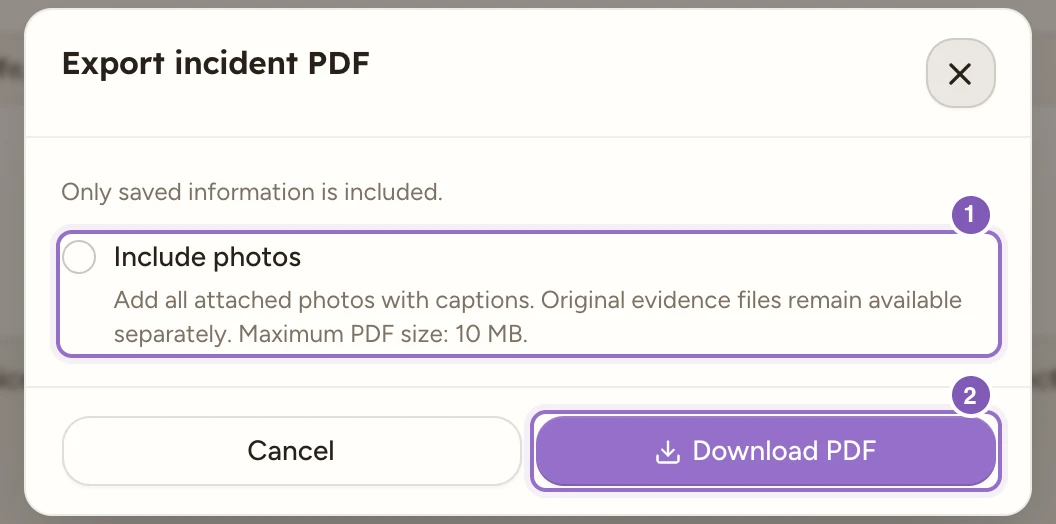
Enlarge screenshot
Swipe across the enlarged image to read each part of the screen.
This saved non-reportable incident has no Report type selector. Only saved information is exported, and Include photos starts unchecked.
Select Include photos if needed, then Download PDF. Photos include their captions. The PDF limit is 10 MB. If the export is too large, export without photos and download the original evidence separately.
Note
The PDF is a supporting document. Complete and submit the required Commission portal form separately. Downloading it does not notify the Commission or change the incident’s status.
See Reportable incidents for classification, reminders and recording notification.
Check the downloaded result
For a non-reportable record there is no Report type choice: review Include photos, then select Download PDF. If you cannot include photos because of document access, the text-only export can still be reviewed using the saved incident details.
For example, choose Five day notification when you need a supporting record that includes the saved witnesses and risk follow-up. Open the downloaded PDF and check the participant, incident date, narrative and any selected photos before giving it to the intended recipient.
If a detail is incorrect, close the export dialog, correct the incident and select Update incident, then download again. If the export fails, read the inline message, confirm your access and retry. If photos make it exceed 10 MB, clear Include photos and download the supporting evidence separately. A download does not mark the incident Notified or Closed.