Browse help topics
Export a completed or approved shift to PDF
Open an eligible Completed or Approved shift and download its latest saved record.
Last updated · 10 November 2026
For an eligible uncancelled Completed or Approved shift, you can download its saved record as a PDF. Use it when you need a readable copy of the shift, its assignments and supporting notes.
Open the completed or approved shift
In Schedule > Scheduling, open the shift and look for Export to PDF in its footer. You need Scheduling read access. An uncancelled saved or displayed Completed or Approved state qualifies; an ordinary clocked-out or submitted assignment alone does not. Read-only access can still allow this download.
Save anything you want included
The export reads the latest saved record. Unsaved changes in an open drawer are excluded. Save any eligible changes and complete the required review before exporting.
Select Export to PDF
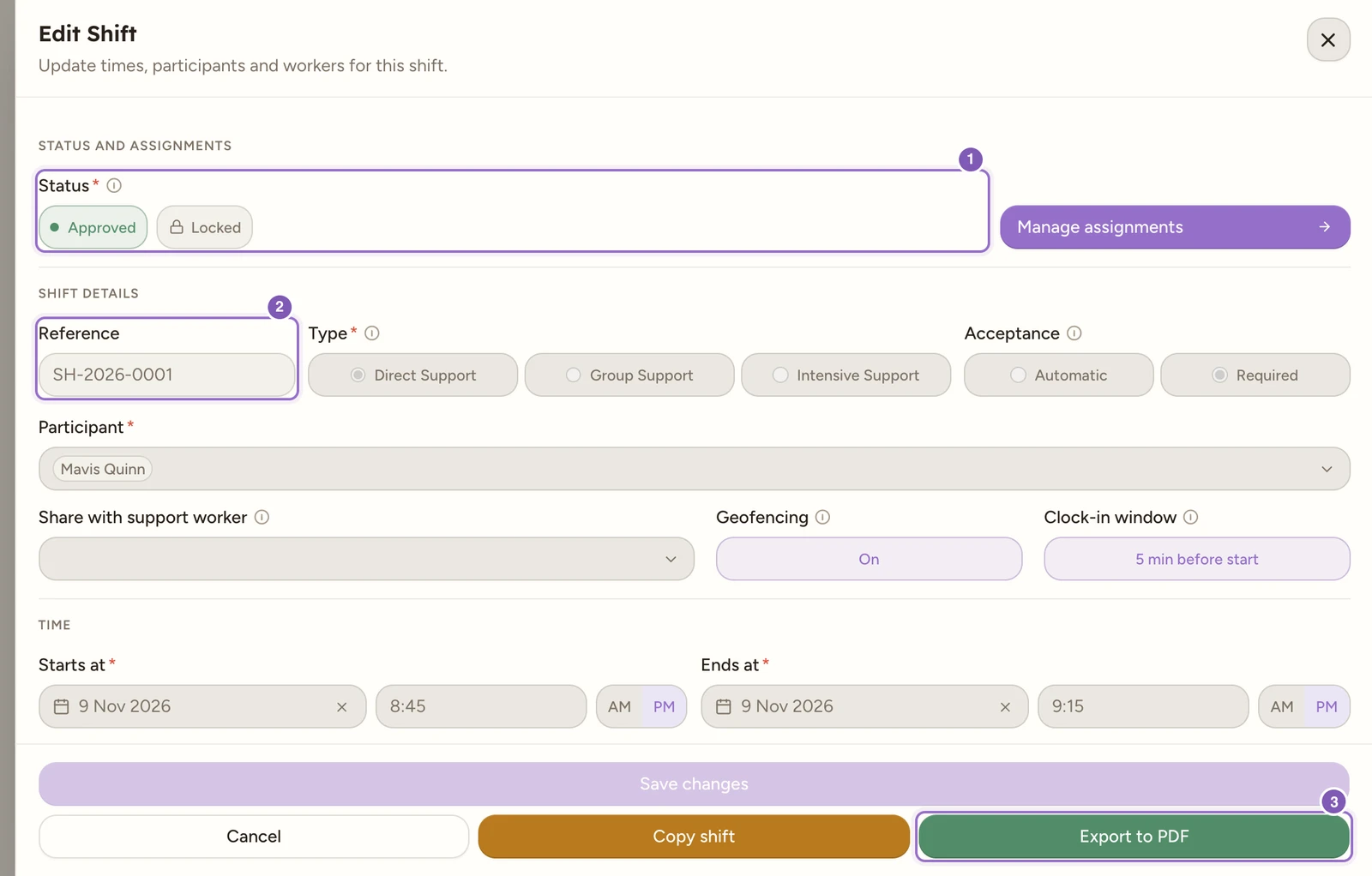
Use the green Export to PDF button in the shift drawer footer. Wait for the download. Shift PDF downloaded. confirms it finished.
Enlarge screenshot
Swipe across the enlarged image to read each part of the screen.
This saved Approved shift offers Export to PDF in the footer. Check its reference first; the download is a copy of the saved operational record.
Check the downloaded record
For example, after approving Jordan’s visit, open its saved Approved shift, check the reference, participant and date, then use Export to PDF. Open the downloaded file and check those identifying details, each assignment’s clocks, the full progress note and the photo section where you have access. For a multi-worker shift, check all assignments rather than only the first page.
If you discover an error, return to the saved record and use the permitted correction/review workflow. Then export a new copy and distinguish it from the earlier download. Editing or renaming the PDF does not correct the underlying shift.
What is included
The report includes saved shift details, participants and allocations, assignment clocks and office corrections, support coding, full progress notes, tasks and travel details. Notes retain their saved status, including draft or returned status where present. Dates and times use the shift’s timezone, and long notes continue across numbered pages.
Worker note photos are appended with assignment, worker and filename captions when your role has document access. If you can read Scheduling but cannot read documents, the report explains that photos were not included. Read-only access to an approved shift can still allow export.
If the download cannot finish
A photo download failure stops the export so you do not receive a silently incomplete copy. Check your connection and access, then retry. A PDF larger than 10 MB including photos cannot be generated; download the original photos separately as directed by the message.
Note
Removing approval hides Export to PDF unless the saved shift still qualifies as Completed. The PDF is a copy of the saved shift record. It does not issue an invoice, submit a claim or finalise payroll.