Browse help topics
Submit your availability
Tell the office when you can work and follow your hours through to approval.
Last updated · 23 September 2026
Availability shows your approved hours and lets you send future changes to the office. Open a request on Home, tap its notification, or go to Settings > Availability.
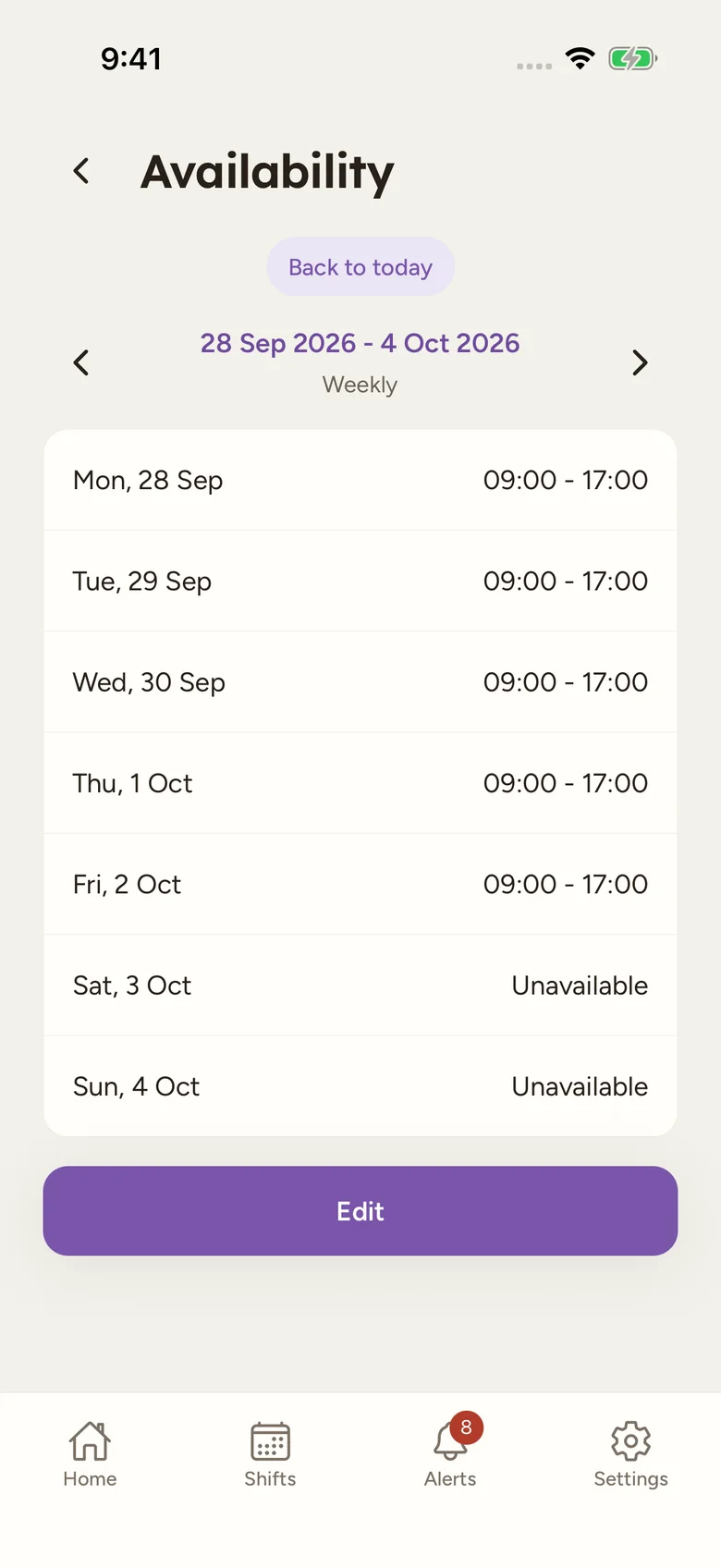
Respond to a request
Check the dates
Open the request and check its period. Your provider collects hours weekly, fortnightly or monthly. If it belongs to another provider you work for, use Switch provider when prompted.
Answer each day
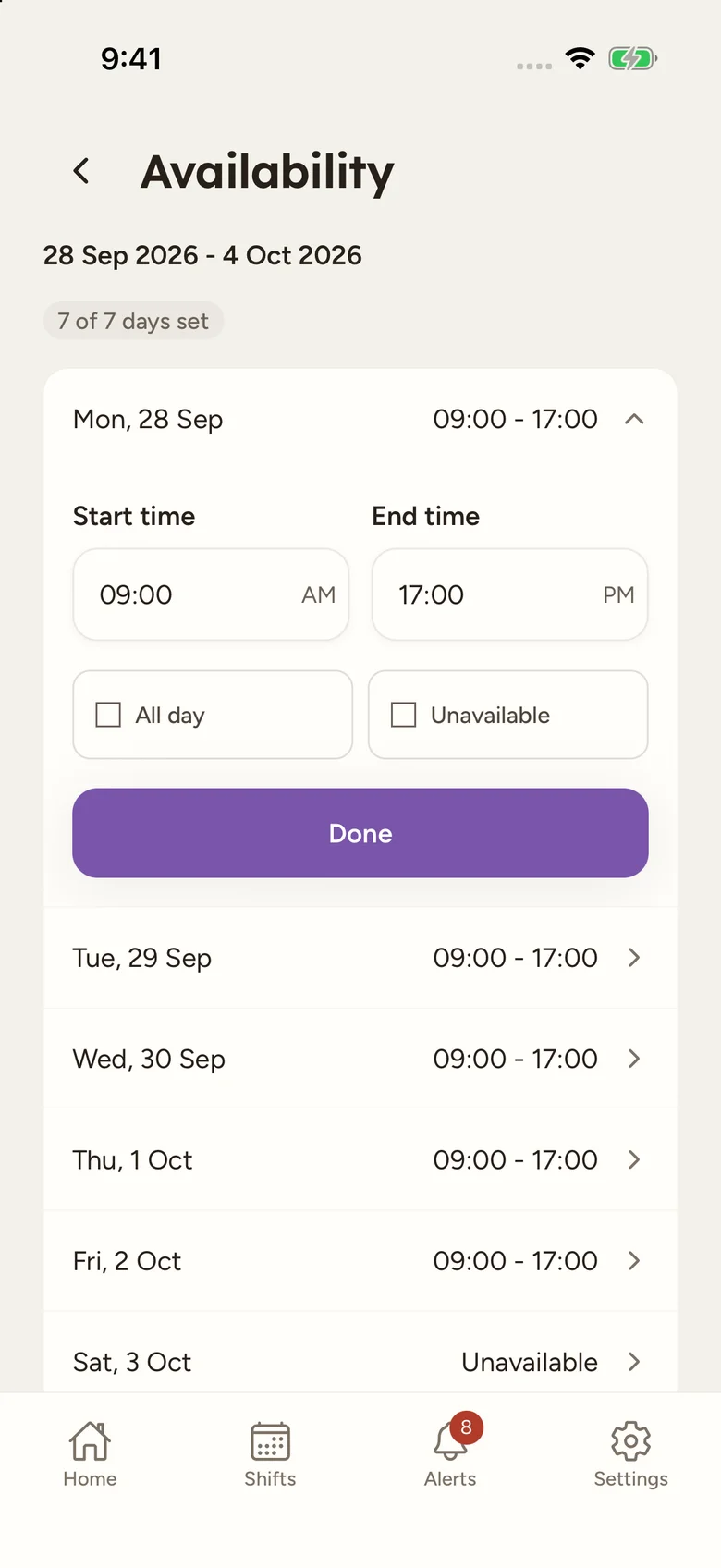
Open a day and enter your start and end times. Use All day if appropriate, or Unavailable if you cannot work. Select Done to keep the day’s choice. Answer every date, including days you cannot work.
Add a note and submit
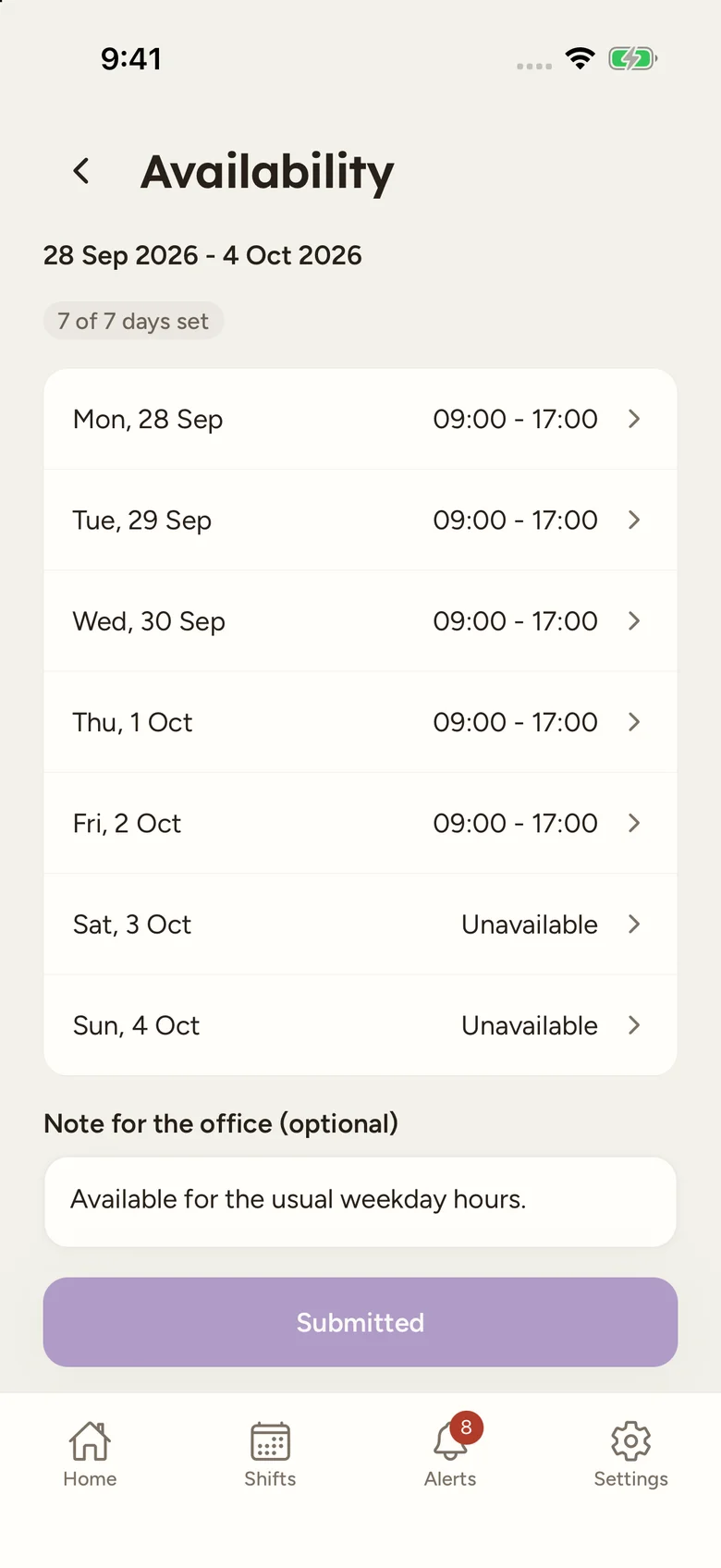
Add a Note for the office (optional) if the coordinator needs context. Check the number of days set, then select Submit for approval.
Read the status
| Status | Meaning |
|---|---|
| Waiting to sync | Saved on this phone, waiting to reach the office. |
| Submitted | The app has a receipt for your response. Check its review status for approval. |
| Awaiting approval | The office still needs to review your hours. |
| Approved | The office has agreed the hours. |
| Changes requested | Open the submission to review what needs changing or what the office proposes. |
Done is different from submitted
Done closes a day’s editor. Submit for approval sends the whole response. Submitted is different from Approved: wait for the office decision before assuming the new hours are agreed.
Change future availability
Move to the period you need and select Edit. Change the future dates, finish each day with Done, then Resubmit. Today and past dates are read-only in worker submissions. If no future dates remain, contact the office.
Full-time and part-time workers can see regular hours set by the office and submit future changes. Casual workers respond to requests and can revise future dates in their period.
Accept an office proposal
Review the highlighted changes and office note. Select Accept changes if you agree to the proposed hours. Acceptance completes approval without another office approval step.
If the times do not work, edit them and Resubmit for review. Changing only your note leaves Accept changes available when the hours still match the proposal.
Leave and overnight hours
Select Unavailable in a day’s editor to choose Unavailable, Annual leave or Sick leave. If leave options are unavailable, contact the office. Leave requests need office approval.
Check AM and PM for overnight hours and review the saved range before submitting. The end time can fall on the following day.
Offline or changed submissions
Load availability while online before relying on it offline. Previously loaded dates and saved drafts remain available; a queued response reads Waiting to sync until it reaches the office.
If a newer response or office edit has changed the submission, review the latest version. Load latest submission replaces this draft’s hours and note, so keep any wording you still need first. A rejected response can appear in Unsaved changes; it has not become approved availability.
Changing hours does not remove a shift
Contact your coordinator about any published shift you can no longer work. An availability change does not cancel it for you.