Browse help topics
Participant progress notes
Read shift progress notes and choose eligible approved notes for worker sharing.
Last updated · 10 November 2026
The Progress notes tab brings together workers’ shift notes for this participant. Use it to read delivery history. Use Internal notes for a separate office coordination note.
Read a shift note
- Open Participants, select the participant, then select Progress notes. You need Participants or Scheduling read access.
- Use Status, the date range and search to find a note or worker. Statuses are Draft, Submitted, Approved and Returned.
- Select the row to open Progress notes. Check the worker, scheduled shift start and end, progress notes and shift summary. Use Assignments to check actual clock times. Photos require Documents read access and the Documents workspace feature.
- Select Close to return to the history.
For a specific note, start with Status: All, clear old search text and date restrictions, then search the worker or note wording. Open the matching row to read the full text; the register can shorten a long note.
For example, filter to Approved and the past week to read how a community-access goal was supported. Check the shift date and worker before relying on the note.
This view is read-only. To approve, return or correct delivery evidence, use the office assignment review workflow. Opening a note here does not approve the shift. If a note is missing, clear the filters, check the participant and review the assignment’s submission status. A loading error is not an empty history.

Enlarge screenshot
Swipe across the enlarged image to read each part of the screen.
The saved individual-shift note is Approved and identifies Jordan Avery and the shift date. The preview is shortened; open it for the full note. Worker-sharing controls are absent because the workspace feature is off.
Enlarge screenshot
Swipe across the enlarged image to read each part of the screen.
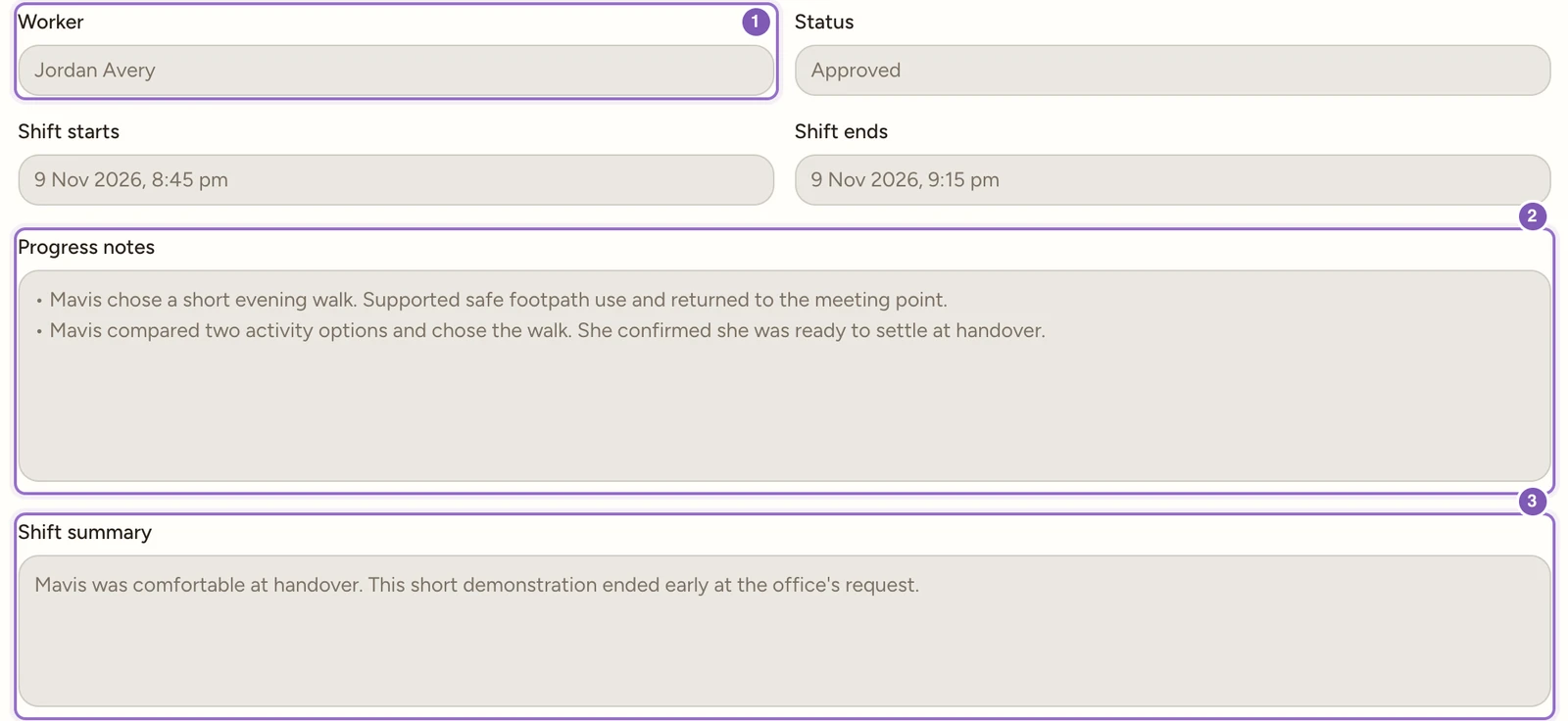
The read-only approved note shows Jordan Avery, the scheduled shift times, full progress notes and shift summary. Corrections and approval belong to assignment review.
Share an approved note with workers
Worker progress-note history starts turned off. The workspace owner can enable Share participant progress notes with workers under Account > Features and choose its history period from 1 to 12 months. This does not restrict the office history you can read here.
When enabled, a Share with worker column and Worker sharing filter appear. You need Participants or Scheduling edit access to change the choice.
- Read the whole note and check that it is suitable for workers who support this participant.
- Choose Share with worker in that row’s dropdown. Leave sensitive office material as Office only.
- Wait for the save to finish. Choose Office only on the same row to withdraw sharing later.
Only eligible notes from approved individual shifts can be shared. Draft, submitted or returned assignments cannot be shared. Not applicable explains that the note is ineligible; a group or reassigned shift may also prevent sharing. Do not alter genuine delivery evidence to clear this restriction.
Notes created while sharing is off remain office-only unless changed later. Eligible individual notes created while the feature is on can start with sharing selected; workers can see them only once the assignment is approved and the other access checks pass. Review the row’s actual choice rather than assuming it is private. A shared note is still subject to the worker’s access and the selected history period. Turning the feature off hides worker access and sharing controls but retains each saved choice. Review those choices before enabling it again.