Browse help topics
Close, recover or download a workspace
Owner steps for closing a workspace, recovering it and saving records before the deadline.
Last updated · 10 November 2026
Only the workspace owner should use these controls when the organisation is stopping its use of OneForce Care. Closing the workspace affects everyone in it. It is different from archiving one participant or worker, or simply signing out.
Before you close
Review outstanding work with the office team first: shifts in progress, submitted notes awaiting approval, unbilled charges, unpaid invoices, payroll and outstanding signing requests. Keep the business records your organisation needs and tell workers when access will stop. Closing the workspace does not settle invoices or pay workers.
Check the business name and your owner sign-in details. If you use two-factor authentication, keep your authenticator available for recovery and download checks.
Close the workspace
- Sign in to the office app as the owner. Open your initials menu, choose Account, then Organisation.
- Find Danger zone and select Delete workspace.
- Read Delete this workspace?. Type the business name exactly as shown, for example Banksia Community Care, only if this is the workspace you intend to close.
- Select Delete workspace to confirm, or Cancel to keep it open.
Business access stops immediately. The recovery period is 30 days (720 hours) before permanent deletion begins. Members lose normal access and Xero is disconnected. Keep the exact Recovery and download deadline shown in Workspace recovery; do not calculate it from a calendar month.
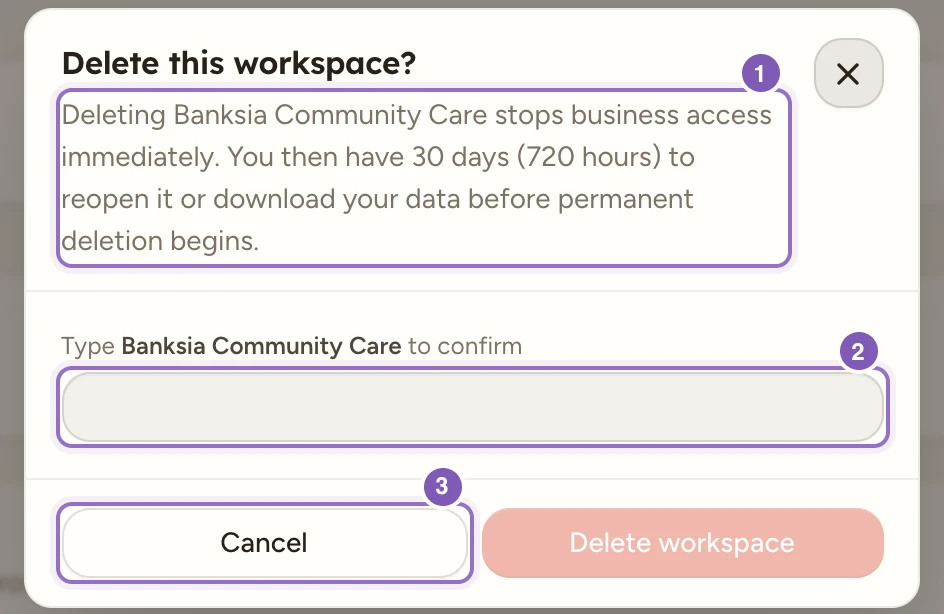
Enlarge screenshot
Swipe across the enlarged image to read each part of the screen.
This is a closure preview only. The workspace-name confirmation is empty and Cancel leaves the fictional workspace open.
Reactivate before the deadline
- Sign in with the owner account for the closed workspace. The Workspace recovery page shows the workspace and deadline.
- If shown, select Verify identity to reactivate and complete the security check.
- Select Reactivate workspace. For a workspace closed automatically for inactivity, the action reads Cancel deletion and reactivate.
- Wait for Workspace reactivated, then select Open workspace.
- Review your records and reconnect Xero separately if needed. Reactivation does not reconnect it automatically.
Automatic inactivity closure applies after 12 months without owner or office admin activity. A worker continuing to use the phone app is not the same as office admin activity.
If the page shows Recovery restricted or Support review required, contact OneForce Care support. After Recovery period ended or Deletion in progress, do not assume the workspace can be restored. Workspace deleted cannot be restored; creating a new workspace does not recover the old records.
Download retained records
The owner can download records during the available recovery period without reactivating the workspace.
- On Workspace recovery, find Download your data. If shown, select Verify identity to download files and complete that check first.
- Follow the instructions shown for your browser. If it supports choosing a folder, create OneForce Care Export in Downloads, select Download files, choose that folder and allow the browser to save files.
- If folder selection is unavailable, select Download files, allow multiple downloads when prompted and find the files with the same filename prefix in Downloads.
- Keep the page open while preparation and downloads run. Wait for Download complete.
- Check the downloaded CSV files and any Documents or Photos files before relying on the copy. These contain private business information; store them with your organisation’s normal access controls.
The download contains separate business-record CSVs. Documents and photos are included when available. It is not a single combined PDF. Downloading does not reopen the workspace or extend the deadline.
If records changed during preparation, start the download again when prompted. If the page reports unavailable files, a capacity limit, a security restriction or a retention review, follow its message and contact support where directed. An interrupted or failed download is not a complete copy. Reactivating the workspace cancels the closed-workspace export.