Browse help topics
Regular hours and leave
Edit a day, repeat permanent hours when appropriate and review affected shifts.
Last updated · 23 September 2026
Use Workforce > Availability for office changes. The calendar on a worker’s profile shows the result but is read-only.
Open a day
Find the worker and select the day to change. Past dates are read-only. If the worker shows Needs setup, set their employment type first.
Set hours or leave
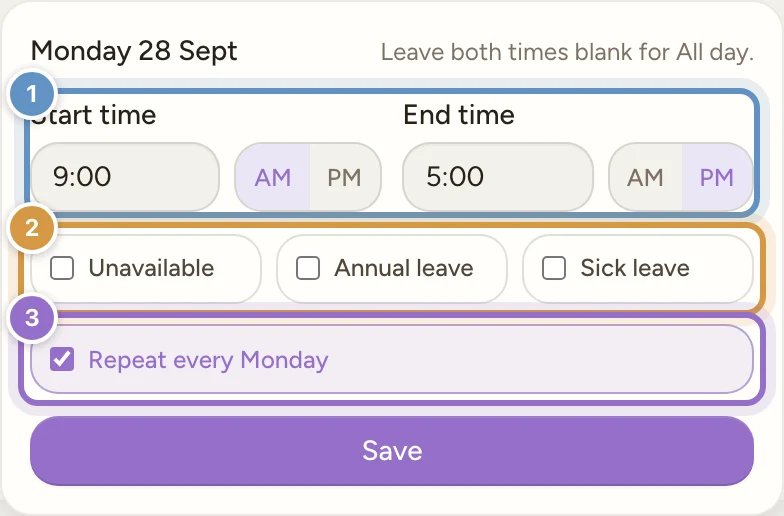
Enter Start time and End time, or leave both blank for All day. Choose Unavailable, Annual leave or Sick leave when the worker cannot work. The time controls offer quarter-hour choices and accept typed times.
Choose whether hours repeat
Full-time and part-time workers have Repeat every [weekday], selected by default. Keep it for regular hours from that date forward, or clear it for a change to that date only. Leave does not repeat through this choice.
Save
Select Save. Office day edits are saved and approved. If published shifts fall outside the changed hours, review them and confirm that you will follow up.
Overnight hours
Check AM and PM when entering overnight hours. The saved day shows (+1 day) when the end falls on the next day. Scheduling checks the whole shift in the shift’s timezone, including time after midnight.
Casual hours and worker requests
A one-day office edit does not complete a casual worker’s whole period submission. Continue to request the period and review their response.
Workers can submit future changes, including leave requests where available, in mobile Availability. The office reviews those requests before approving the new hours or leave.
Follow up existing shifts
Leave or reduced hours can affect published work. The confirmation identifies those shifts, but leaves them on the roster for the office to resolve.